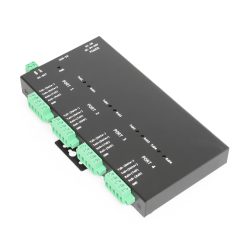
4-Port Industrial USB 2.0 to RS-232 / 422 / 485 Serial TB Adapter w/ Optical Isolation & Surge Protection

Model No. USB2-4COMi-SI-TB

RS-232 | RS-422 | RS-485 | 2,000 Bytes Receive | 2,000 Bytes Transmit

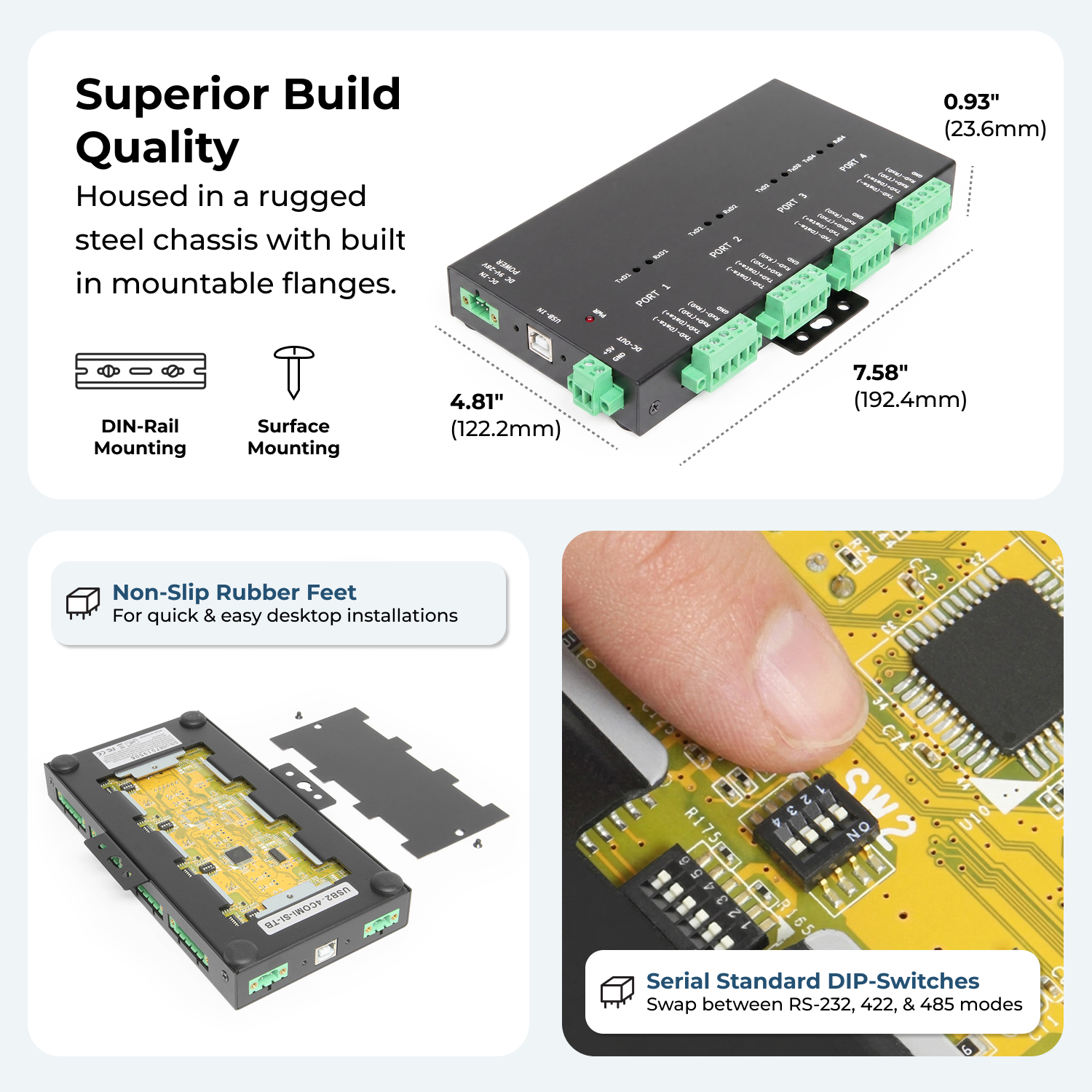
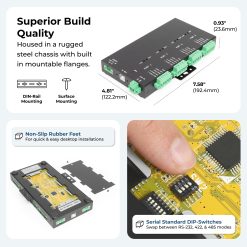
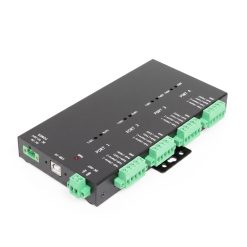
  • Superior Build Quality: Housed in a rugged steel chassis with built in mountable flanges, the serial adapter hub is perfect for installations in labs, warehouses, or heavy machinery.
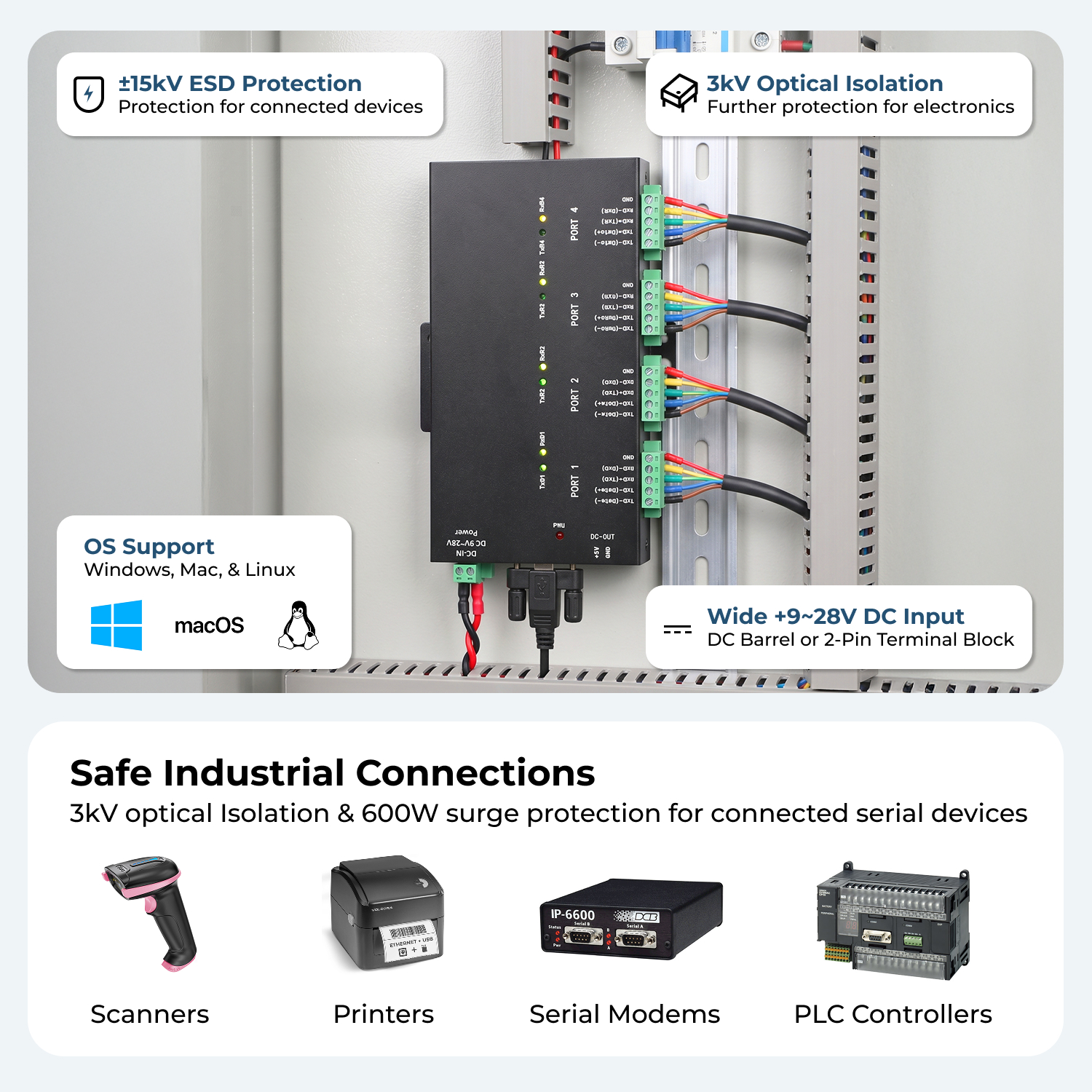
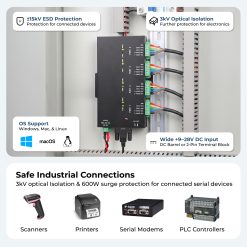
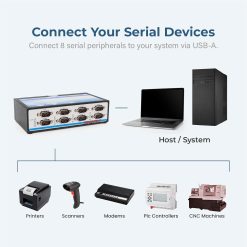
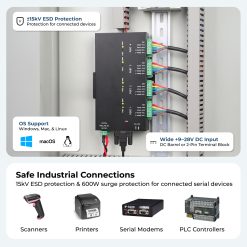
  • Safe Industrial Connections: Designed for use with Bar Code Scanners, Time Clocks, Label Printers, Point of Sale Terminals, Receipt Printers, and more the USB to Serial Adapter offers 3KV optical Isolation, 15KV ESD protection & 600W surge protection.
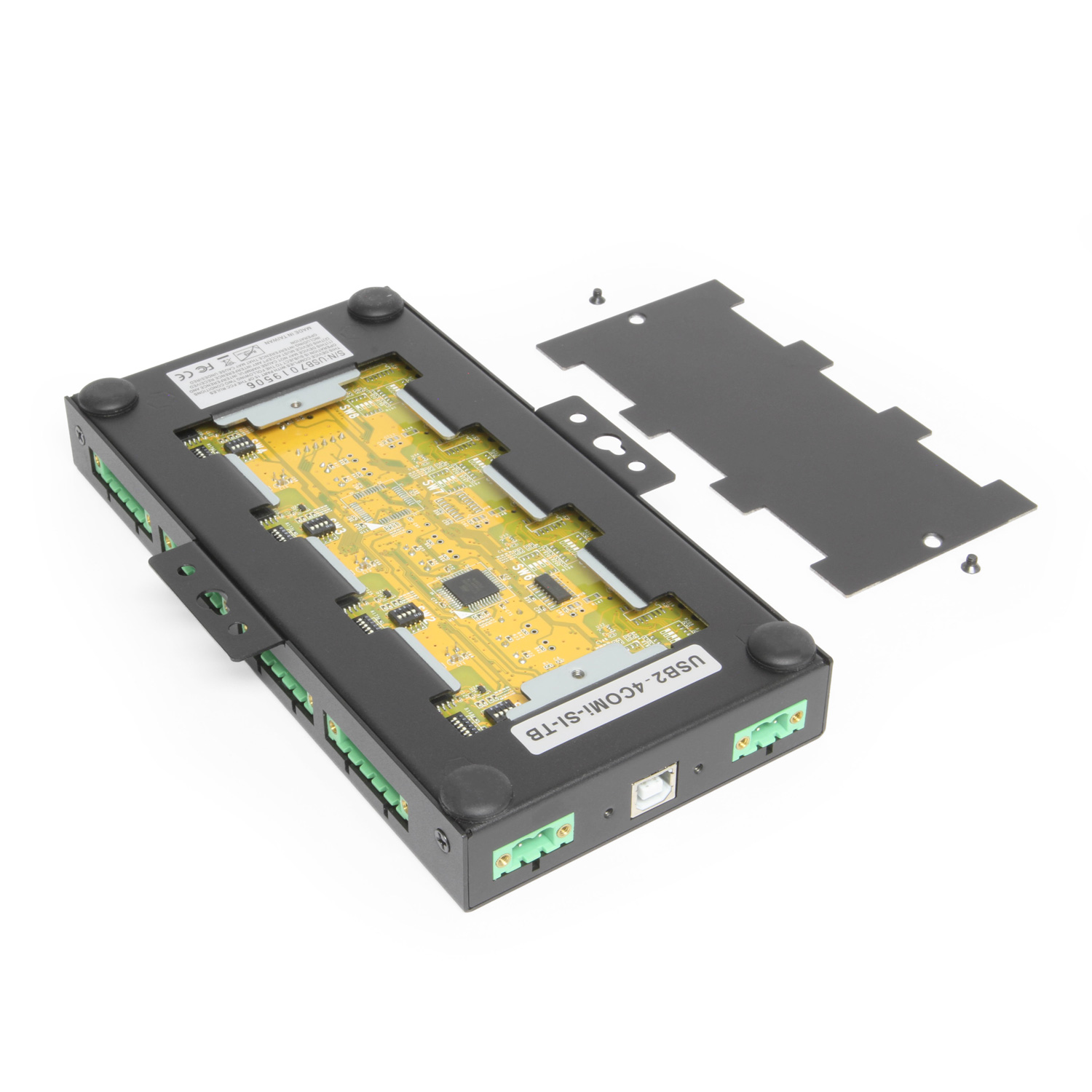
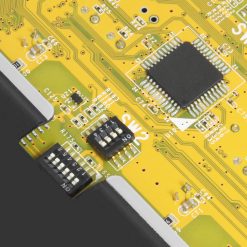
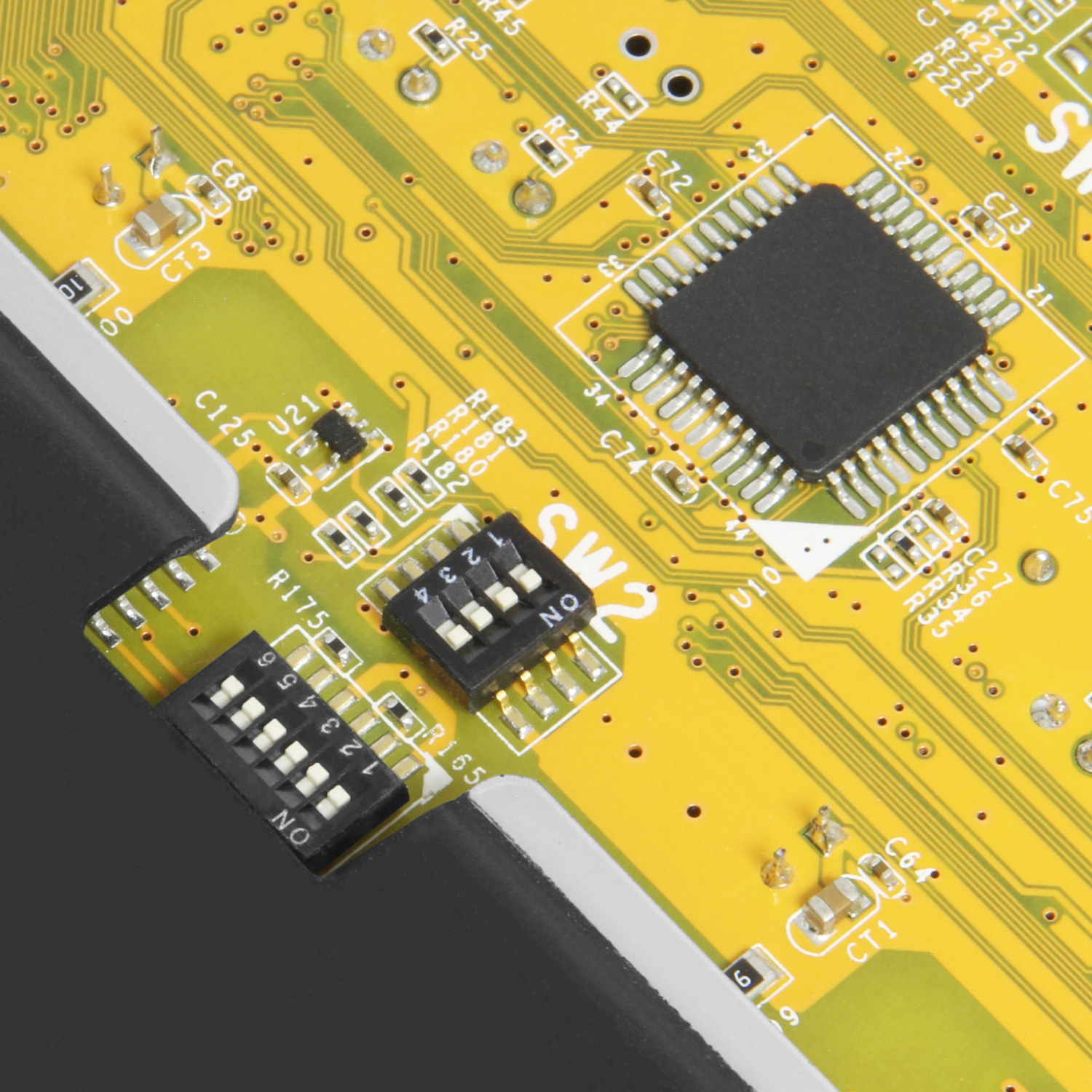
  • Effortless Port Configuration: The adapter is designed with external dip switches to set RS-232, RS-422 or RS-485 ports and different operation modes conveniently.
  • COM Retention: COM Ports are fully configurable, and after reboots, port assignments are preserved.
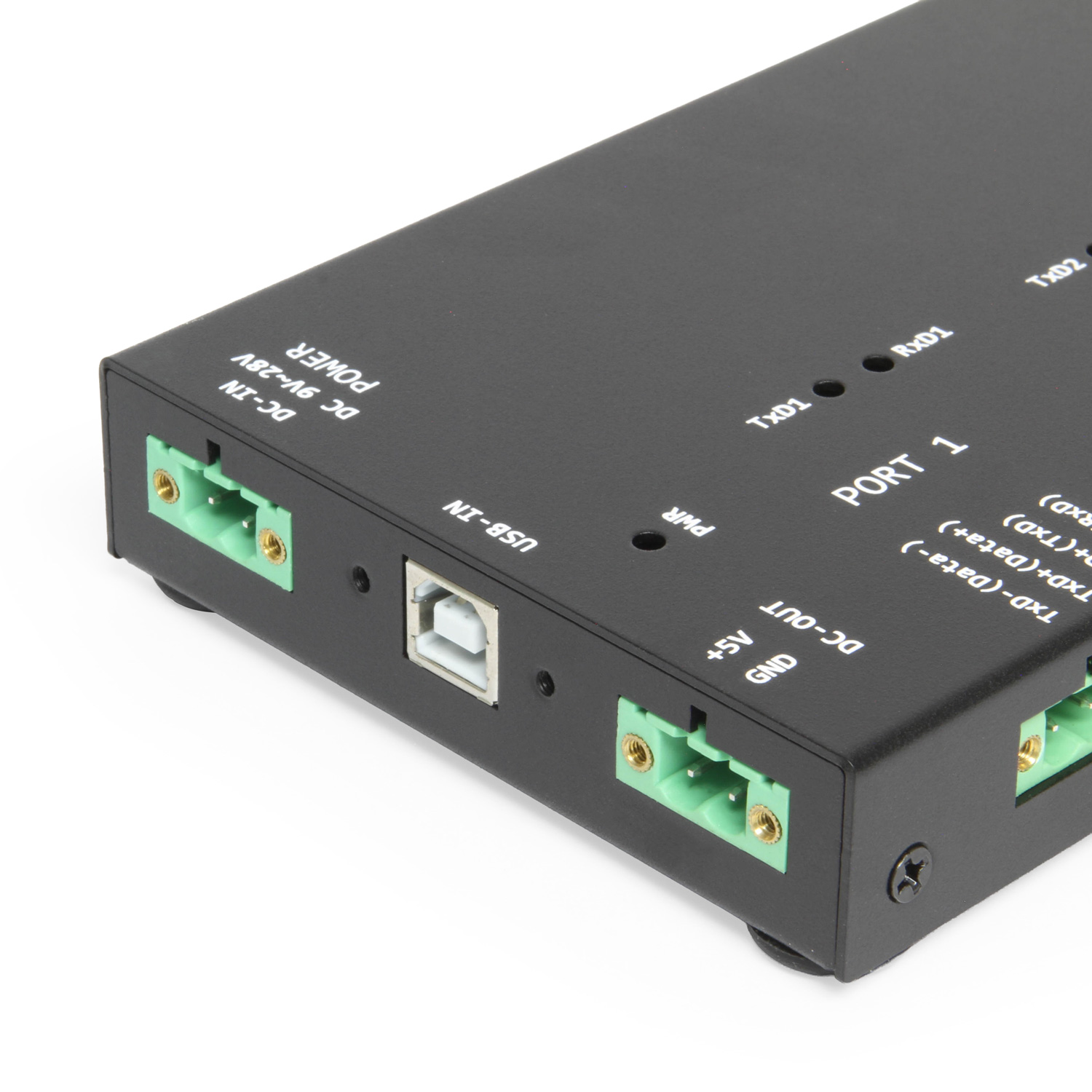
  • Power: Power is drawn from the included 12V / 1A power adapter.
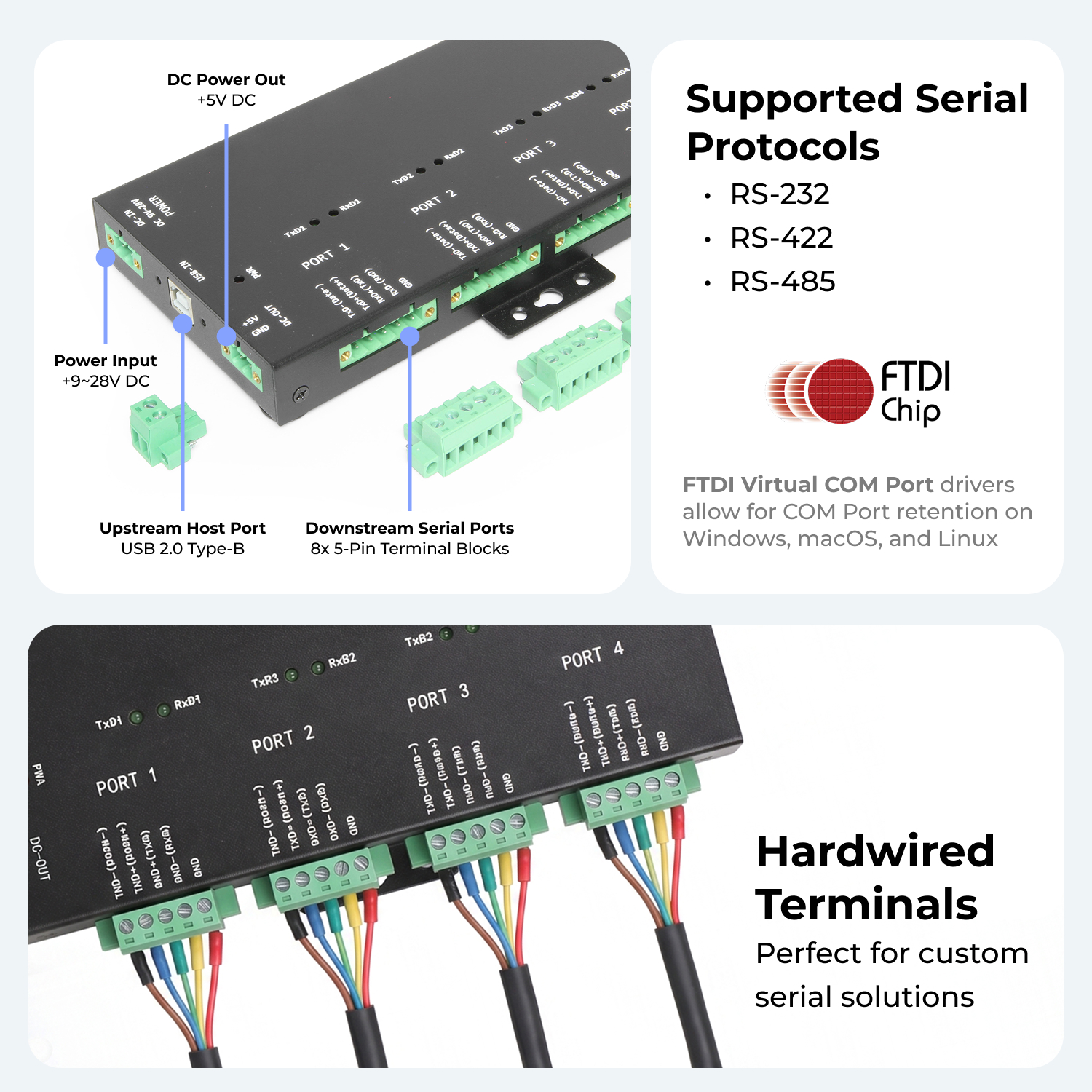
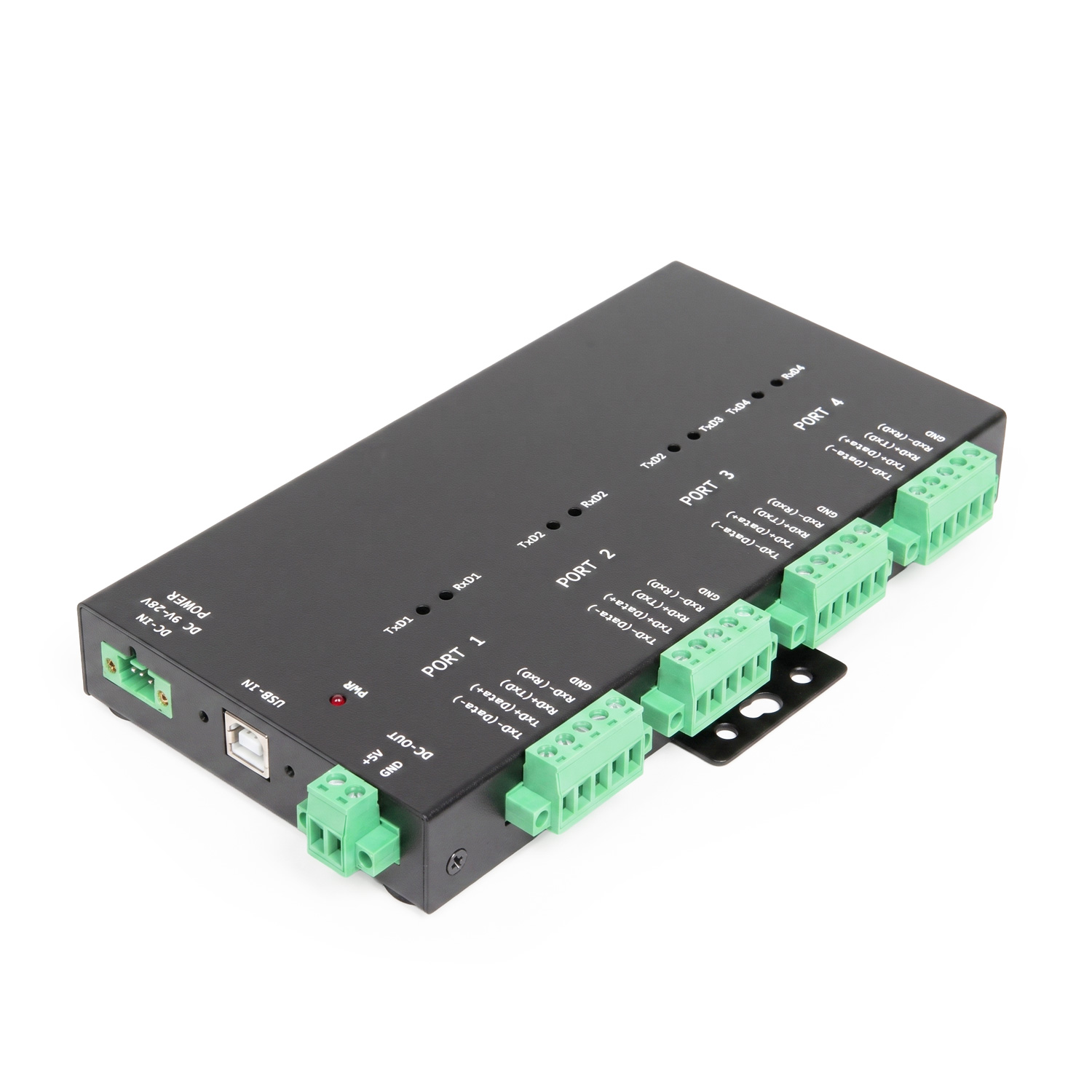
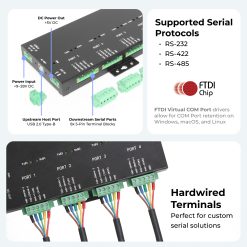
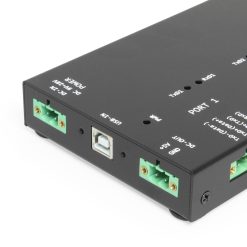
  • Upstream: 1 USB port, Type B Female Connector
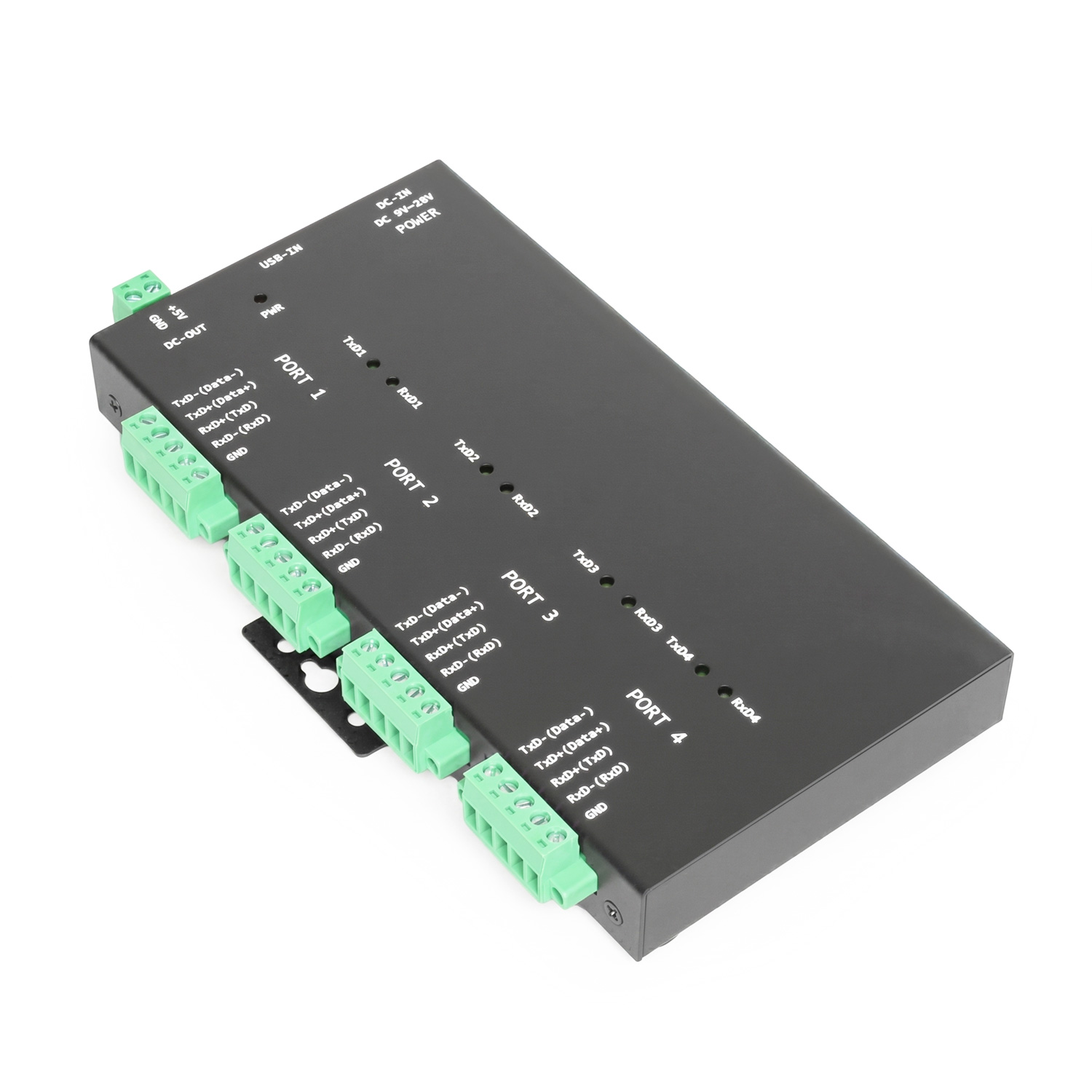
  • Downstream: 4 5-pin Screw Lock Terminal Blocks
  • LEDs: Power, TX / RX

$269.29

Model No. USB2-4COMi-SI-TB

Expected Availability Date: November 5, 2026

Not in stock - Backorder allowed

TAA CE FCC REACH RoHS

Also available from:


Export Product as PDF

Need some help? Contact us.
Description

Introduction:

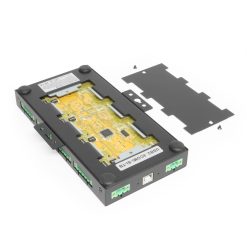
The USB2-4COMi-SI-TB is a USB 2 to 4-port industrial serial adapter that protects you device(s) with optical Isolation, 15KV ESD protection and 600W surge protection over each port. It is designed to make RS-422 and RS-485 serial port expansion quick and simple through its terminal block connection. All ports are controlled by DIP switches, each terminal block serial port can be individually designated for the signal your application demands. The USB 2 to 4-port serial adapter has an industrially designed metal case where the DIP switches are located within the bottom access panel.

4-Port RS232-422-485 Serial TB Adapter Connected

By connecting to the USB port on your computer or available USB hub, the USB to industrial serial adapter instantly adds four RS-232/422/485 interface serial communication ports to your system while taking advantage of both the Plug-and-Play, and Hot-Plug features of the USB bus.

The USB2-4COMi-SI-TB industrial serial adapter makes it very easy to add 4 protected industrial communication ports to your system though its terminal block interface with DIP switch controls.

Features:

  • Supports USB 1.1 and USB 2.0 transfer speeds from 1.5 up to 480 Mbps, automatic link and speed detection.
  • Adds four high-speed RS-232/422/485 serial ports via USB connection.
  • 2K byte receive buffer.
  • 2K byte transmit buffer for high speed data throughput.
  • Requires no IRQ, DMA, I/O port.
  • Data rates: 300 bps to 921.6K bps.
  • Each serial port supports 5-pin screw-lock-type terminal block connector.
  • Auto-transmit buffer control for 2-wire RS-485 half-duplex operation.
  • Biasing and Termination resistors installed on-board.
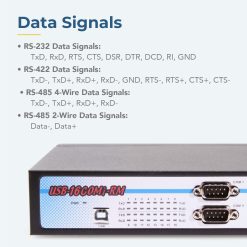
  • Supports RS-232 3-wire signals: RxD, TxD, GND
  • Supports RS-422, RS-485 4-wire signals: TxD-, TxD+, RxD+, RxD-
  • Supports RS-485 2-wire signals: data-, data+
  • Monitor LEDS of TxD, RxD indicating port status
  • AC to DC-12V, 1A switching power supply included
  • Supports 3KV optical Isolation, 15KV ESD protection and 600W surge protection
  • Virtual COM port drivers available for Windows 11, 10, 8.1, 8, 7, Vista, 2003, 2000
  • Industrial grade metal case with DIN-rail ears for Din-rail mounting.
  • Chipset: FTDI FT4232H USB 2.0 to quad UART chip
  • Dimensions: 192.42 x 122.22 x 23.60 mm (L×W×H), dimensions are to DIN rail(W), to power plug(L)

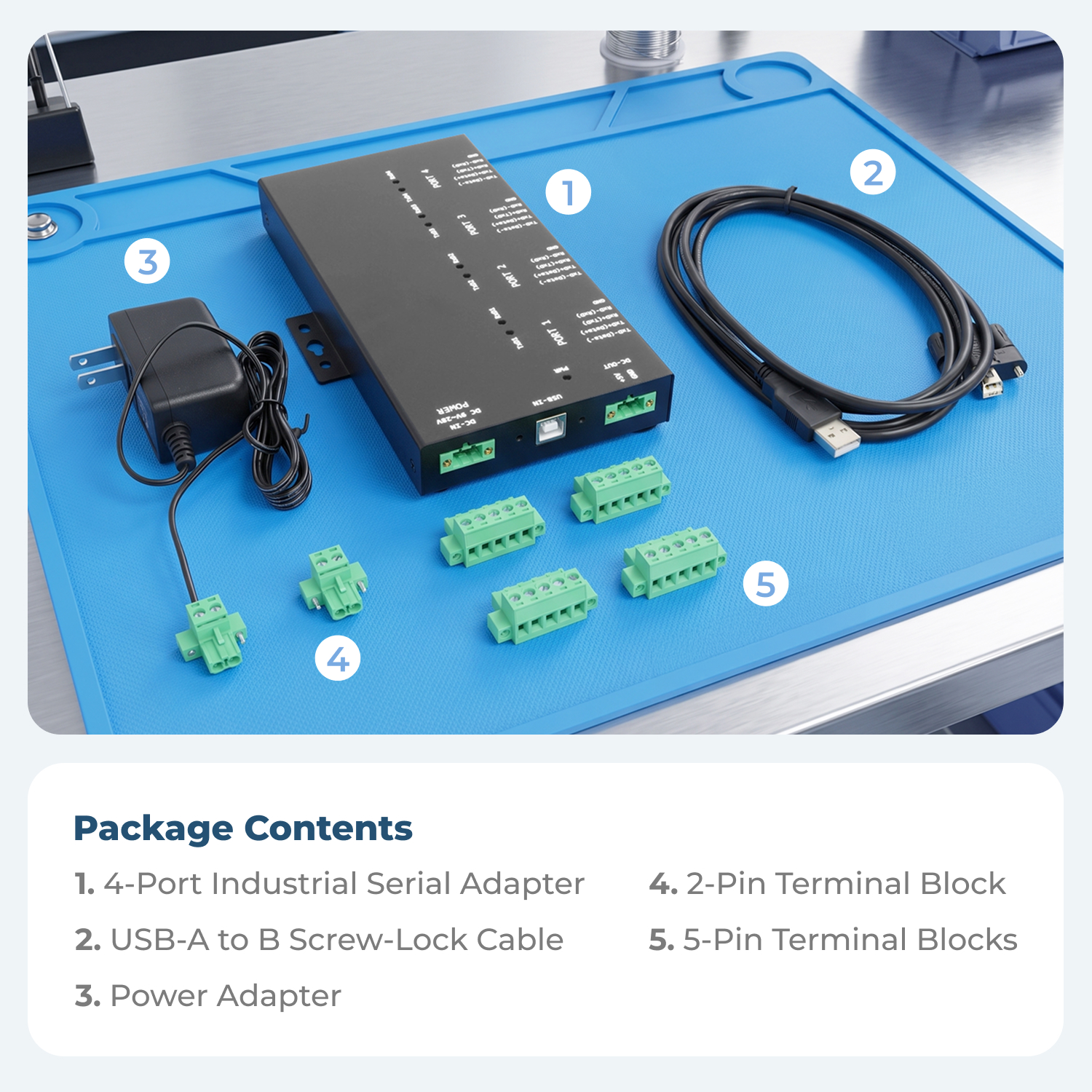
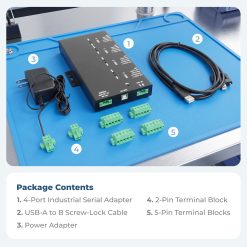
Package Contents:

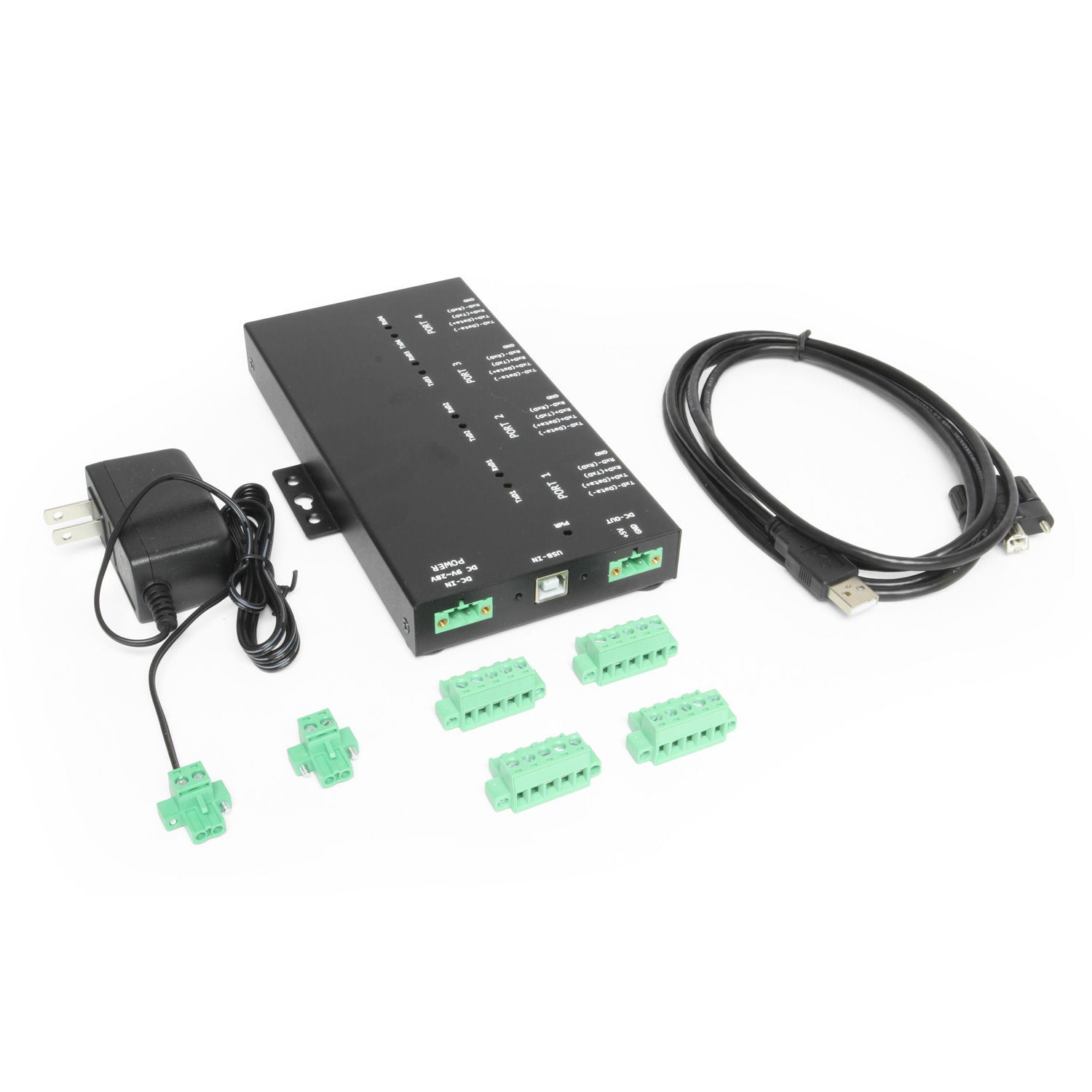
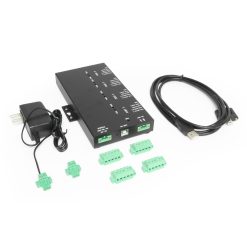
  • USB2-4COMi-SI-TB serial adapter
  • Power adapter
  • USB cable

*Surface Mounting screws not included.

Specifications

Product Specifications

IdentifierProduct Type: Adapters > USB > Serial
PowerInput Voltage Range: 9 ~ 28V DC
Power Source: 2-Pin Terminal Block, AC Adapter Included
Bus Power Support: Y – Supports Bus Power
ComplianceCountry of Origin: Taiwan
Certifications: TAA, CE, FCC, REACH, RoHS
Physical CharacteristicsColor: Black
Mounting Style: Din-Rail Mount, Surface Mount
Ports: 4 Serial Ports, 1 USB Port
Material of Construction: Steel
Screw Lock Compatible: Yes
Serial AttributesRS Signals: DATA+, GND, RXD+, TXD+
Serial Standards: RS232, RS422, RS485
Serial Baud Rate Maximum: 12 Mbps
FIFO Receive: 2k Bytes
FIFO Transmit: 2,000 bytes
Data Bits: 7, 8
Serial Parity: None, Even, Odd, Mark, Space
Stop Bits: 1, 2
Flow Control: Hardware (RTS, CTS), XON/XOFF
Serial Port qty: 4
What's in the BoxPackage Contents: Power Cable, USB Cable, USB Serial Adapter
SoftwareOS Support / Compatibility: Windows 11, Windows 10, Windows 8, Windows 7, Windows Vista, Mac OS, Linux
EnvironmentalOperating Temperature Range: 0C ~ 60C
Storage Temperature: -40C ~ 85C
Humidity: 0% to 90% RH
Product InformationWarranty: One Year
HardwareChipset: FTDI
LED Indicators: Power, TX / RX
Upstream Port Types: 1 Type-B Female USB
Performance & SafetyESD Protection: 15kV
Isolated: 3000v
Additional DetailsUPC: 736983902443
Connector: 5-Pin Terminal Block
USB Specification: USB 2.0 (480Mbps)
Weight: 2.0000 lbs
Dimensions: 11.2500 × 5.7500 × 2.5000 in
UPC: 736983902443
Pin-Outs

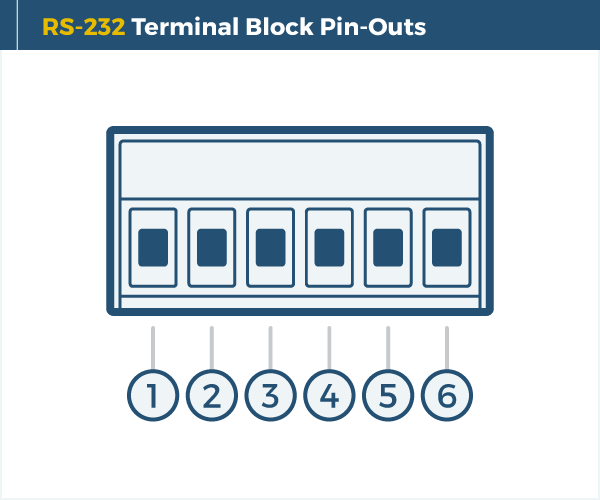
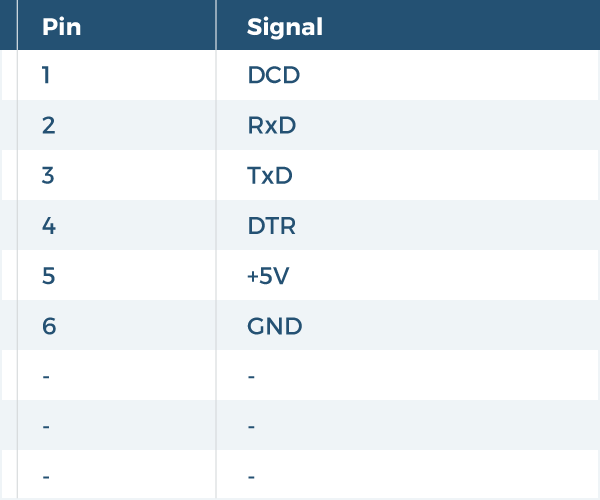
Terminal Block RS-232 Pin-Outs

DB9 RS-232 Pin-Out Diagram
DB9 RS-232 Pin-Out Chart

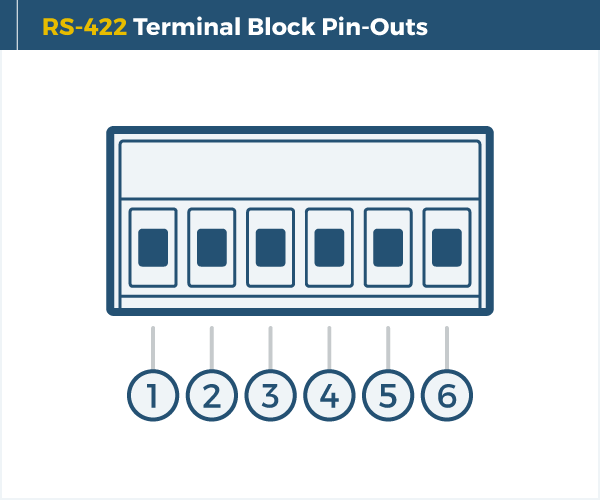
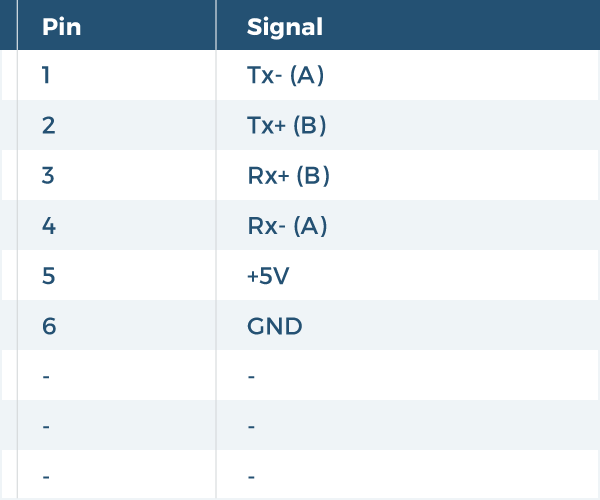
Terminal Block RS-422 Pin-Outs

DB9 RS-232 Pin-Out Diagram
DB9 RS-232 Pin-Out Chart

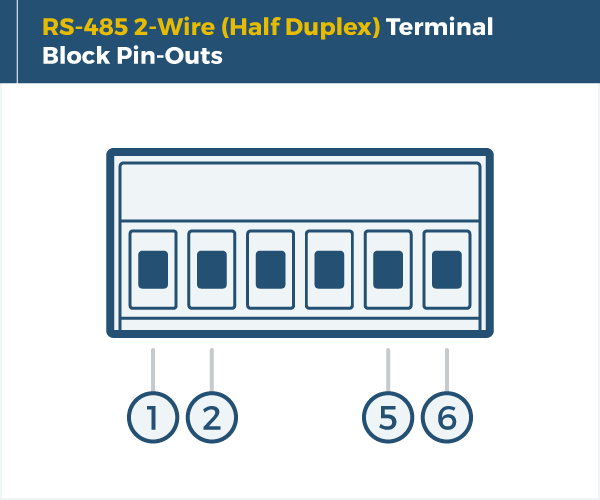
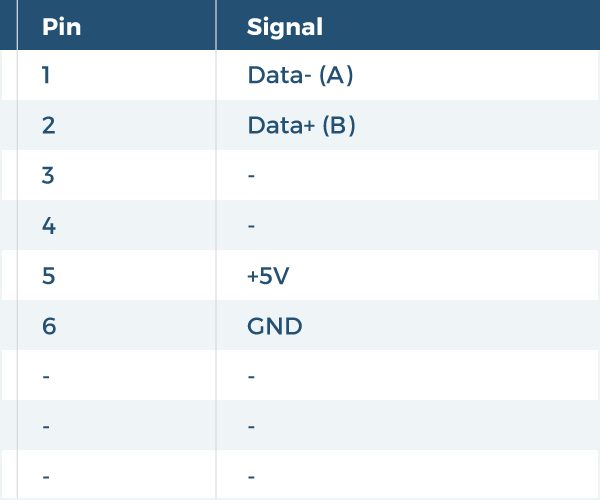
Terminal Block RS-485 Pin-Outs 2-Wire

DB9 RS-232 Pin-Out Diagram
DB9 RS-232 Pin-Out Chart

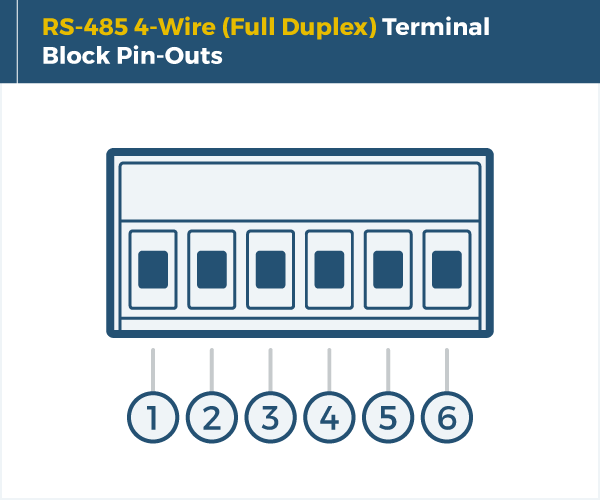
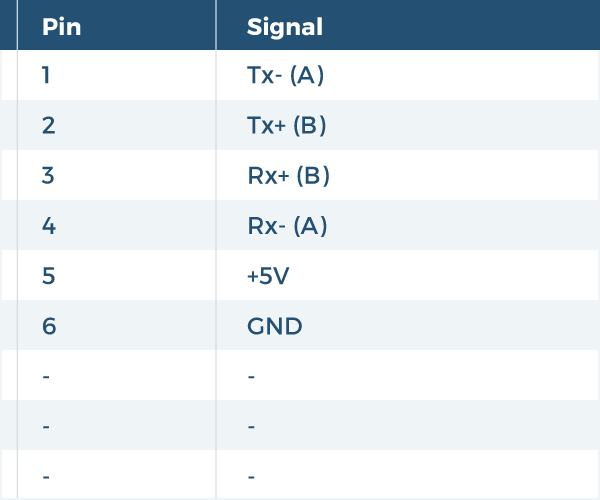
Terminal Block RS-485 Pin-Outs 4-Wire

DB9 RS-232 Pin-Out Diagram
DB9 RS-232 Pin-Out Chart
Accessories & Replacement Parts

Accessories & Replacement Parts

The USB 2 to 4-Port RS232-422-485 Serial TB Adapter has certain accessories that work with it. These accessories are what you can order if needed.

USB 2.0 Cable – Screw Lock Cable Our Screw Lock USB cables are designed and manufactured to be the best your money can get and…

Model# SC-U2MAB

$9.99

In stock

Add to cart

Out of stock
RS232 Male to Female Serial Data Cable Complete your serial data connection with this 5ft. RS232 DB-9 Male to Female data cable for fast reliable…

Model# 9DBMF5FT

$2.99

Out of stock

Read more

Serial F.A.Q.

Product F.A.Q.

View frequently asked product questions below. For all serial troubleshooting, visit this page.
Still need help? Reach out!

  • Do these adapters require an external power supply?

    Most of our single and dual-port models are USB bus-powered. High-density rackmount models (8-port+) feature integrated or external power supplies for maximum signal integrity.

  • What is the difference between an isolated and non-isolated serial adapter?

    Isolated adapters use optical barriers to physically separate the electrical signals. This protects your computer from 2,500V surges and ground loops common in factory environments.

  • Can I use these adapters with Windows 11?

    Yes, all Coolgear Serial adapters use modern FTDI or Silabs chipsets with WHQL-certified drivers for full Windows 11, Mac, and Linux support.

  • What is COM Port Retention and why do I need it?

    COM Port Retention ensures that your assigned COM port number remains the same every time you plug in the adapter or reboot your PC. This prevents software communication errors and eliminates the need to manually reconfigure your application settings whenever hardware is moved.

  • How do I clean and reinstall my FTDI drivers?
      1. Download the CDM Uninstaller HERE.
      2. Extract the zip file, or open the “CDMuninstallerGUI.exe” utility.
      3. Leave the ‘Vendor ID’ set to 0403 and ‘Product ID’ set to 6001.
      4. Click Add.
      5. Click Remove Devices.
      6. Download the corresponding driver for your operating system and follow on-screen prompts. Windows Driver | MacOS Driver

    Video tutorial here.

  • How can I change my device’s COM port?
      1. Click on Start and navigate to the Control Panel
      2. Locate and click on Device Manager
      3. Under “Ports (COM & LPT)” you will find your serial device titled “USB Serial Port” along with its current COM Port.
      4. Right click on “USB Serial Port” and click on Properties.
      5. Navigate to the “Port Settings” tab and click on “Advanced…”
      6. Once there, the “COM Port Number:” can be changed with a dropdown menu to select the port number.
      7. Click your desired port number (i.e. COM2) and click “OK”.
      8. Click “OK” once more.
      9. Your serial device is now assigned to your chosen COM Port.


  • How do I check to ensure the COM port is listed properly in Windows?
    To ensure your serial device is installed properly, complete the following:

    1. Press Windows Key + R to open the Device Manager. Once Run comes up, type “devmgmt.msc” into the text field and press Enter.
    2. Expand the section labeled, Ports (COM & LPT).
    3. You should now see a COM number in brackets to the right of each port. If the device is installed properly, no exclamation points or question marks should be present next to the device.
  • I have everything hooked up, but nothing is functioning correctly.
    To rule out potential issues, quickly test your individual components to ensure that they are working correctly individually, and are not the source of the problem:

    • Serial cables
    • Serial ports
    • Serial devices

    Test your components by:

    • Hook up the serial cable(s), serial port(s), and serial device(s) in a different setup to see if the issue stems from a particular component, or the setup as a whole.
    • Replace the serial cable, port, or device within your setup to further troubleshoot the issue’s origin.

    When testing cables:

    • Test each cable individually.
    • Use short cables when you are testing.

    When testing serial ports and devices:

    • Press the Windows key + R, in Run, type devmgmt.msc, and press Enter to open the Device Manager. You can then check to see if your device is listed under Ports (COM & LPT).
    • Ensure that the COM port number is the correct number for the serial device and that the software being used to connect the computer to the serial device uses the correct COM port number.
    • If the device is listed with an error, follow the instructions on the website to reinstall the drivers.
  • Serial communication is not functioning correctly, how can I tell if the problem caused by the adapter or my serial software application?
    Older serial communication applications make use of legacy hardware addresses, often incompatible with PCI, PCIe, and USB to Serial products. Contact the software provider to troubleshoot.
  • I am receiving an error when I try to install the drivers in Windows 8 64 bit.
    Driver Signature Enforcement in Windows 8 may need to be disabled in order to use various drivers. After disabling this feature, the driver will be allowed to install.

    Note: You are required to restart your computer after disabling the Driver Signature Enforcement. Save all open work on your computer.

    Disable driver signature enforcement:

    1. Press the Windows key + C.
    2. Click Settings > Change PC Settings.
    3. In the left pane, click General.
    4. In the right pane, under Advanced startup, click Restart now.

    When your system restarts:

    1. Click Troubleshoot > Advanced options > Startup Settings > Restart.
    2. Press 7.

    When your computer restarts, Driver Signature Enforcement will be disabled and you can install the drivers.

Reviews (0)

Reviews

There are no reviews yet.
Be the first to review “4-Port Industrial USB 2.0 to RS-232 / 422 / 485 Serial TB Adapter w/ Optical Isolation & Surge Protection”