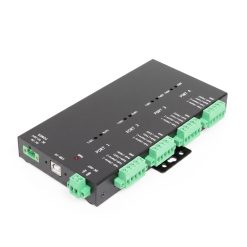
USB 2 to Industrial 4-Port RS232-422-485 Serial TB Adapter

Model No. USB2-4COMi-TB

Terminal block serial adapter for RS-232/422/485

Our series of Industrial USB 2.0 to terminal block serial adapters support RS-232, RS-422, and RS485 and are designed with the user in mind, the adapter is with DIP switch control for each individual port connection to suit your applications.

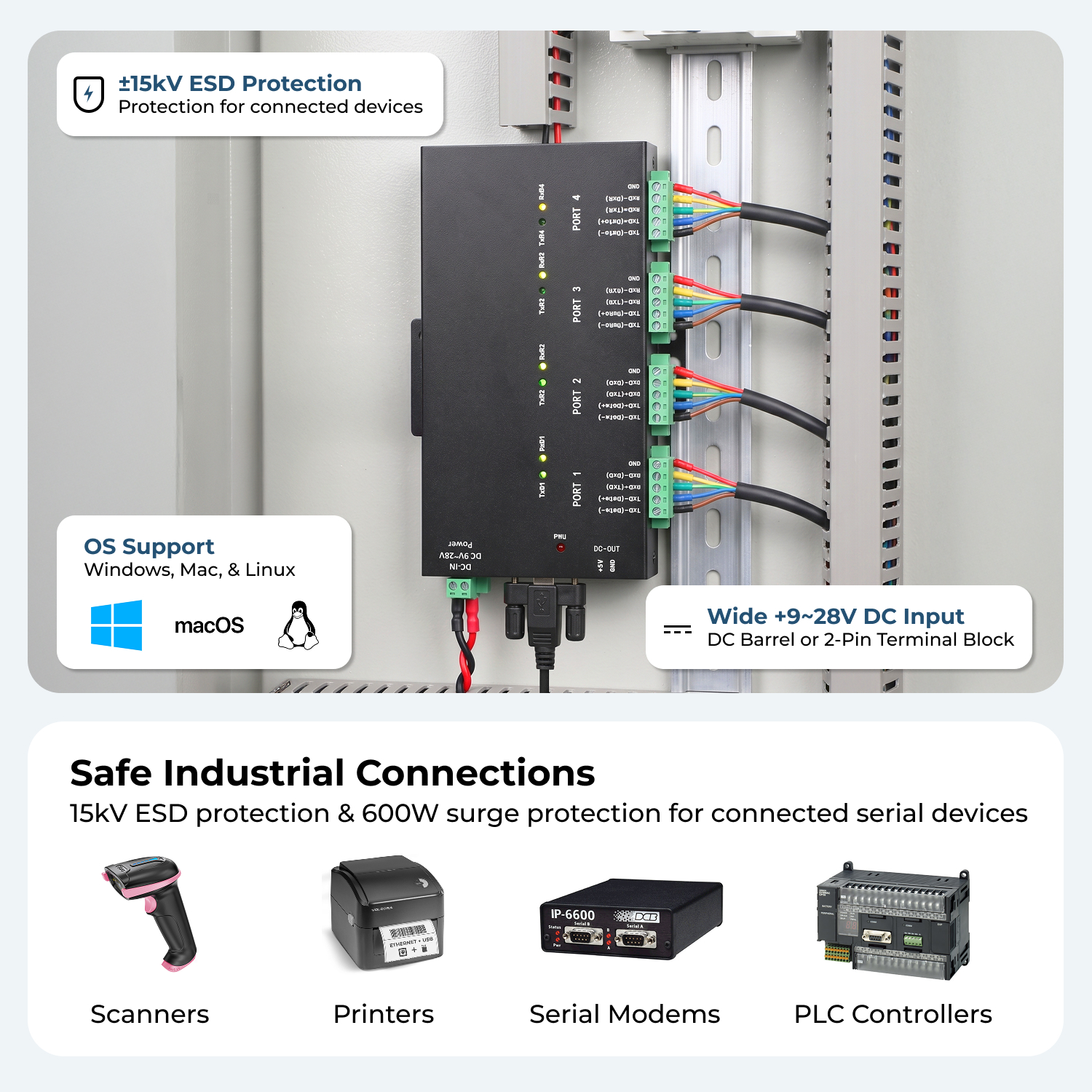
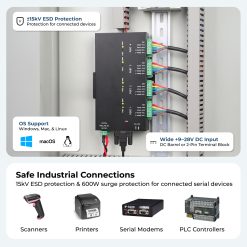
  • Supports 15KV ESD protection and 600W surge protection for all serial signals
  • Uses FTDI FT4232H USB 2.0 to quad UART chip
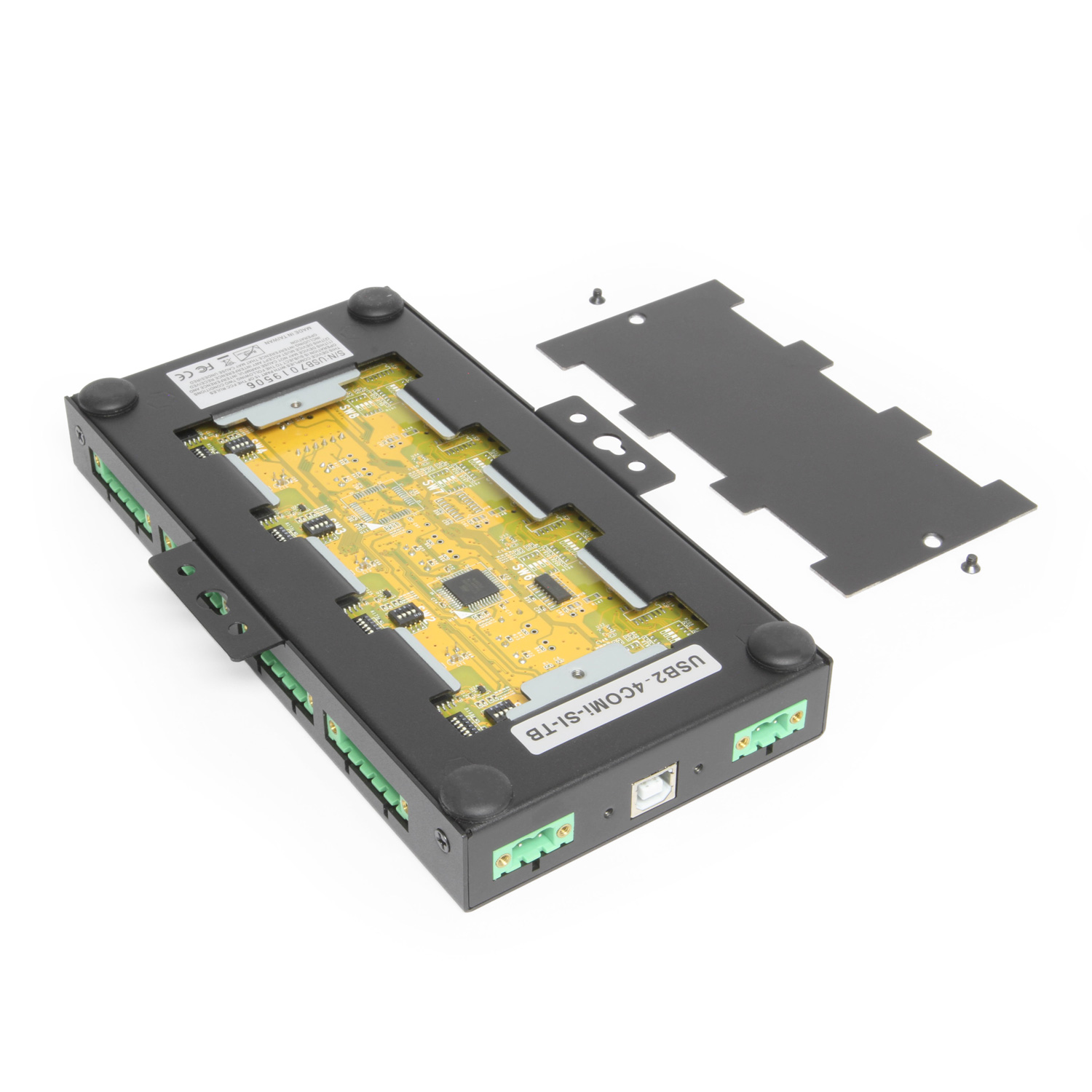
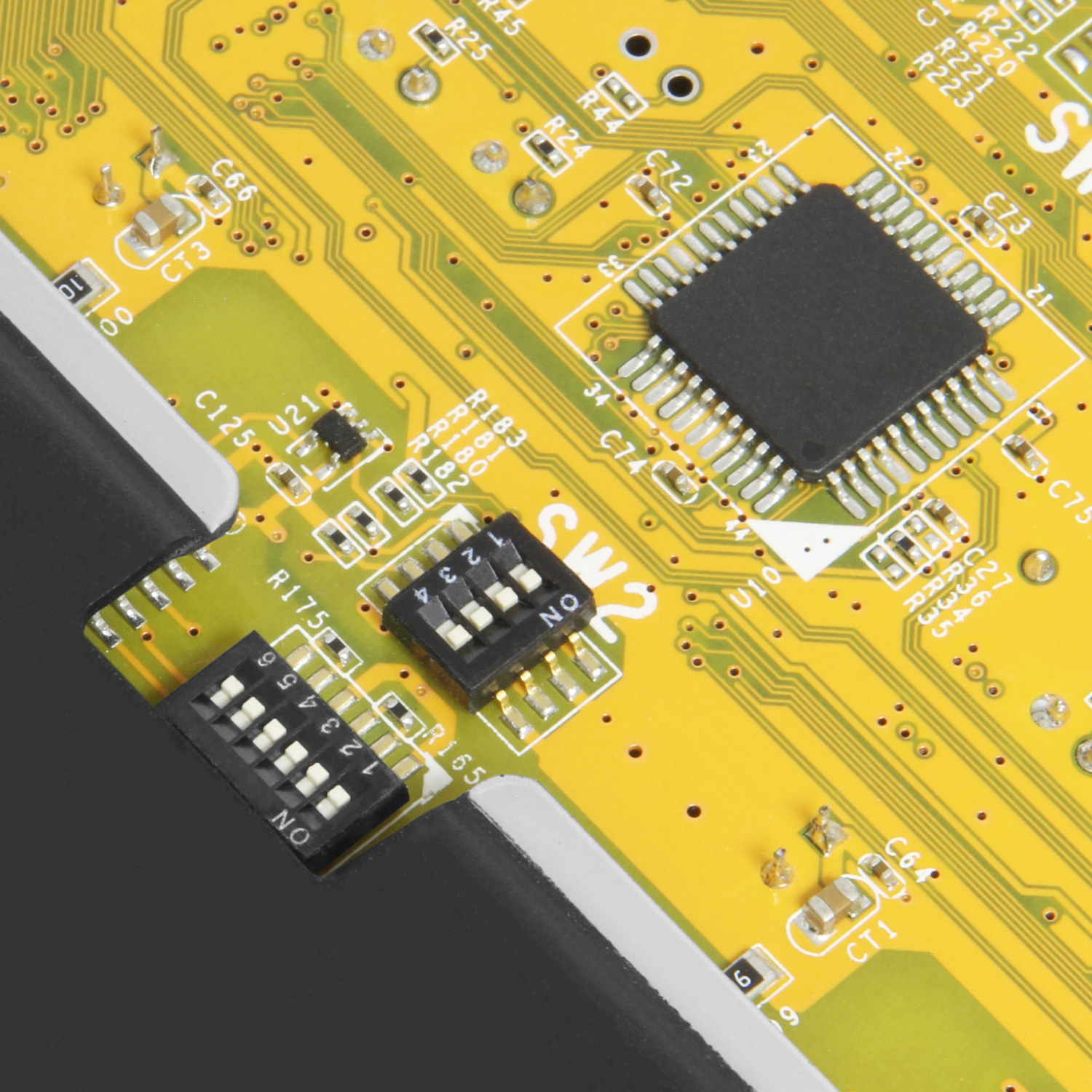
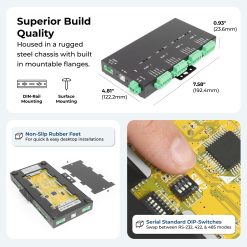
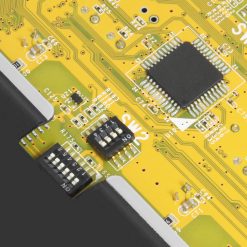
  • Incorporates DIP switch control over each individual port.
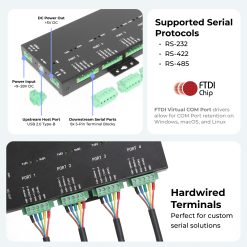
  • Supports RS-232, RS-422, and RS-485 signals.

$204.29

Model No. USB2-4COMi-TB

Expected Availability Date: March 6, 2026

Not in stock - Backorder allowed

CE FCC RoHS TAA Compliant

Also available from:


Export Product as PDF

Need some help? Contact us.
Description

Serial communication through terminal block connection

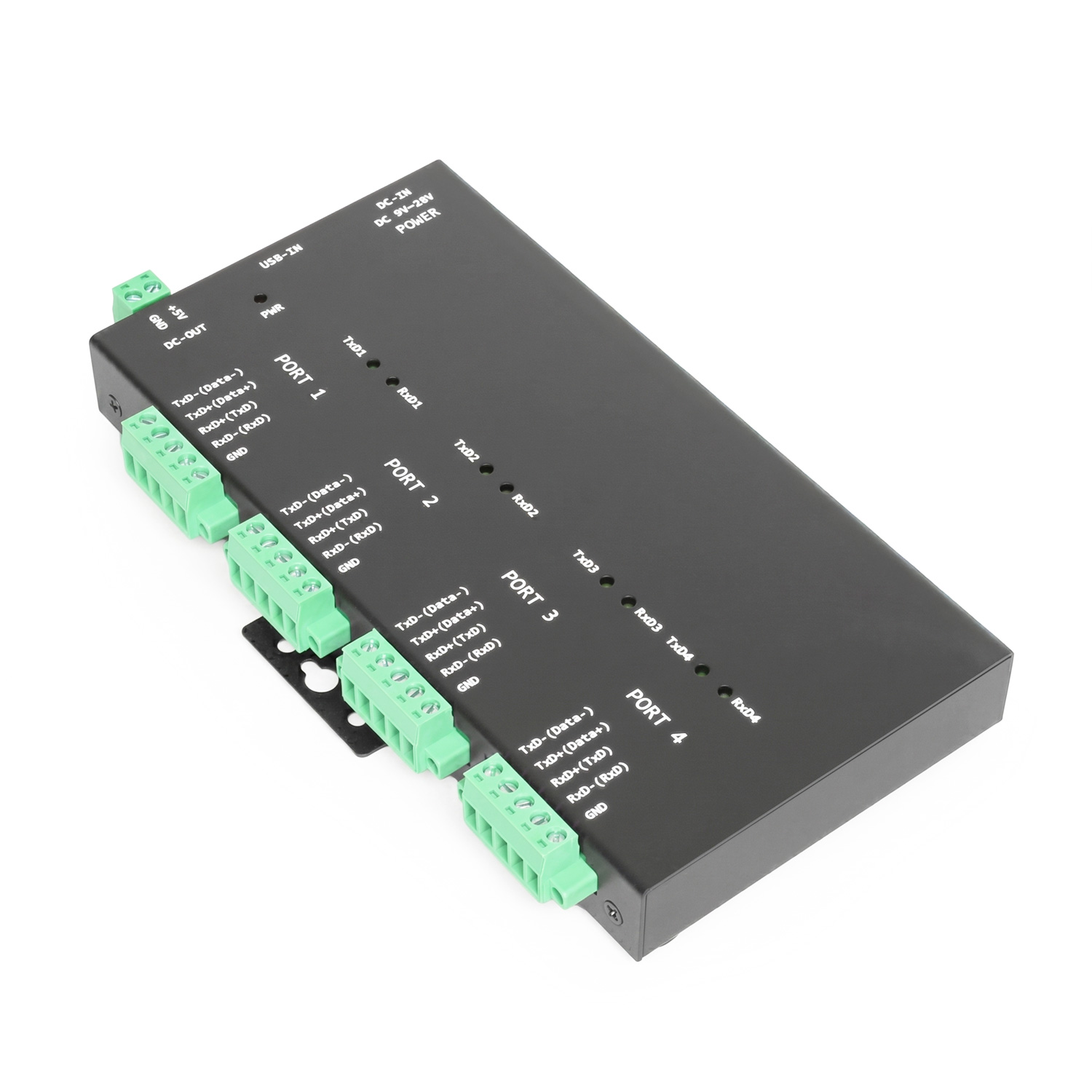
The USB2-4COMi-TB USB to quad port industrial serial adapter is designed to make RS-422 and RS-485 serial port expansion quick and simple through its terminal block connection. Controlled by DIP switches, each terminal block serial port can be individually designated for the signal your application demands. The USB 2.0 to 4 port serial adapter supports 15KV ESD protection and 600W surge protection for all serial signals.

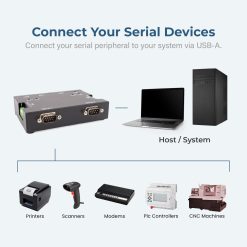
By connecting to the USB port on your computer or available USB hub, the USB to industrial serial adapter instantly adds four RS-232/422/485 interface serial communication ports to your system while taking advantage of both the Plug-and-Play, and Hot-Plug features of the USB bus.

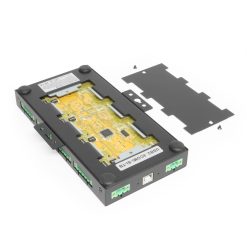
The USB2-4COMi-TB industrial serial adapter makes it very easy to add 4 industrial communication ports to your system though its terminal block connection and controlled by DIP switch controls located within the metal chassis of the adapter.

Product Features

  • Supports USB 1.1 and USB 2.0 transfer speeds from 1.5 up to 480 Mbps, automatic link and speed detection.
  • Adds four high-speed RS-232/422/485 serial ports via USB connection.
  • 2K byte receive buffer.
  • 2K byte transmit buffer for high speed data throughput.
  • Requires no IRQ, DMA, I/O port.
  • Data rates: 300 bps to 921.6K bps.
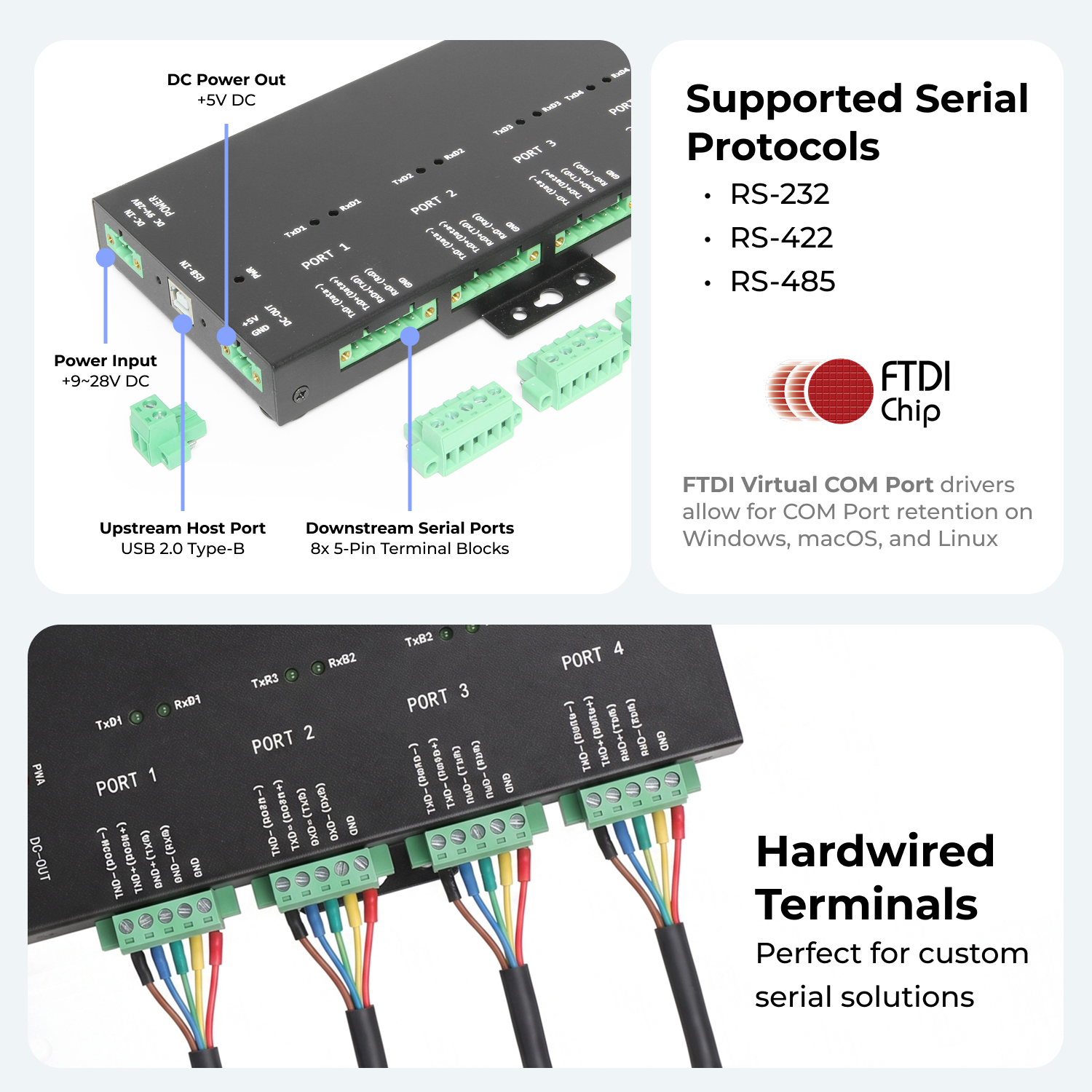
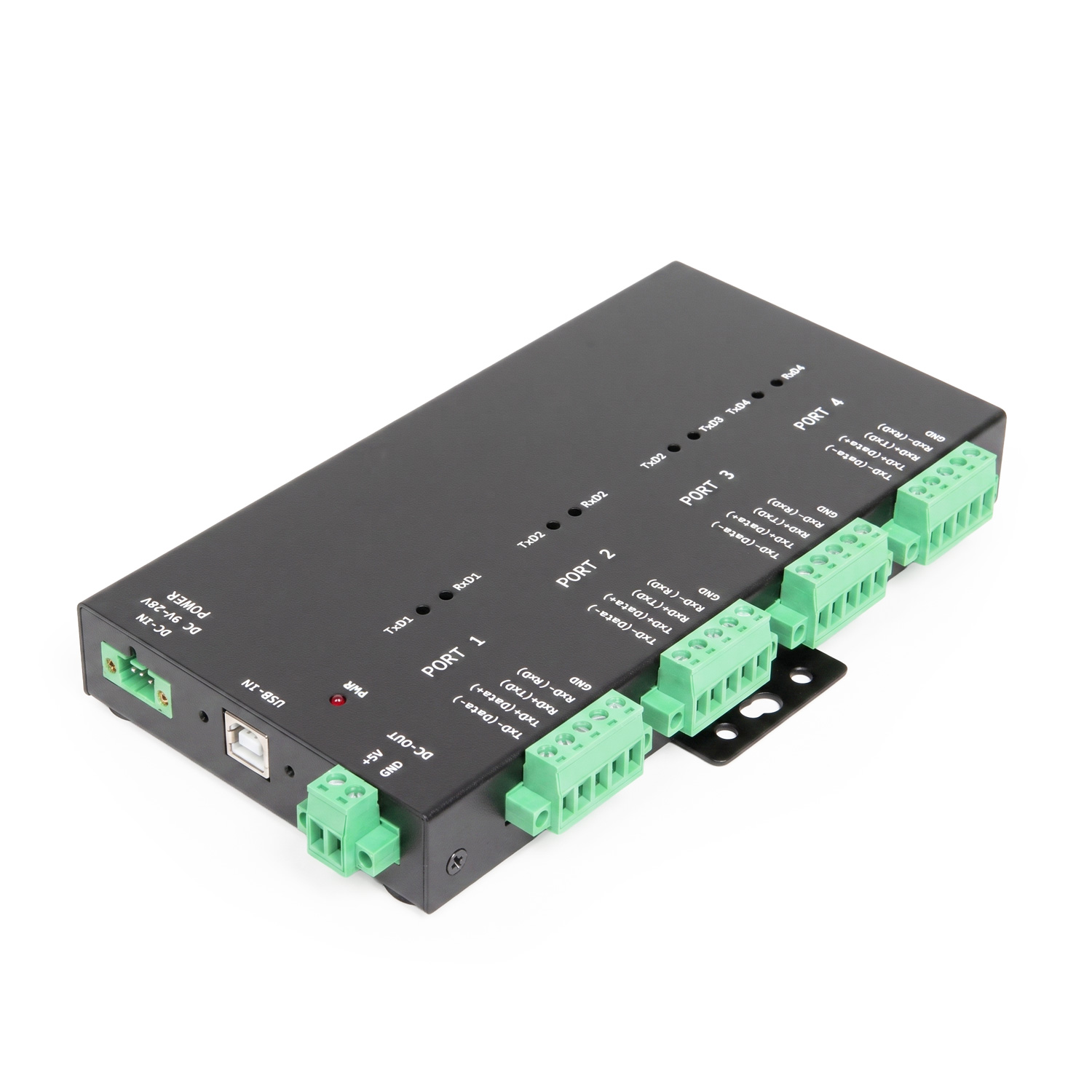
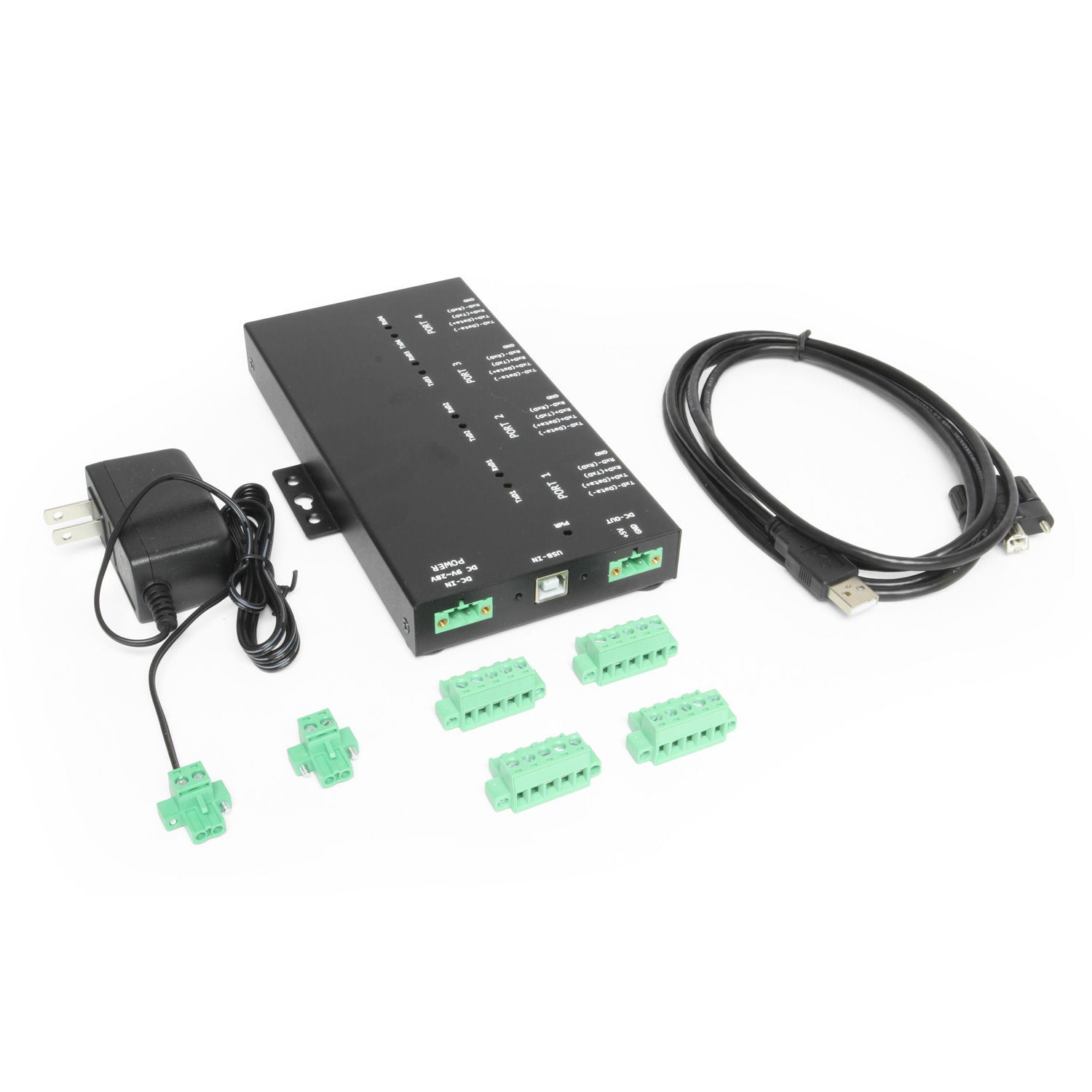
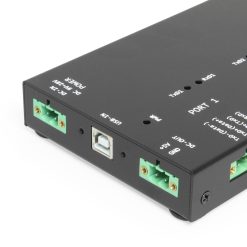
  • Each serial port supports 5-pin screw-lock-type terminal block connector.
  • Auto-transmit buffer control for 2-wire RS-485 half-duplex operation.
  • Biasing and Termination resistors installed on-board.
  • Supports RS-232 3-wire signals: RxD, TxD, GND
  • Supports RS-422, RS-485 4-wire signals: TxD-, TxD+, RxD+, RxD-
  • Supports RS-485 2-wire signals: data-, data+
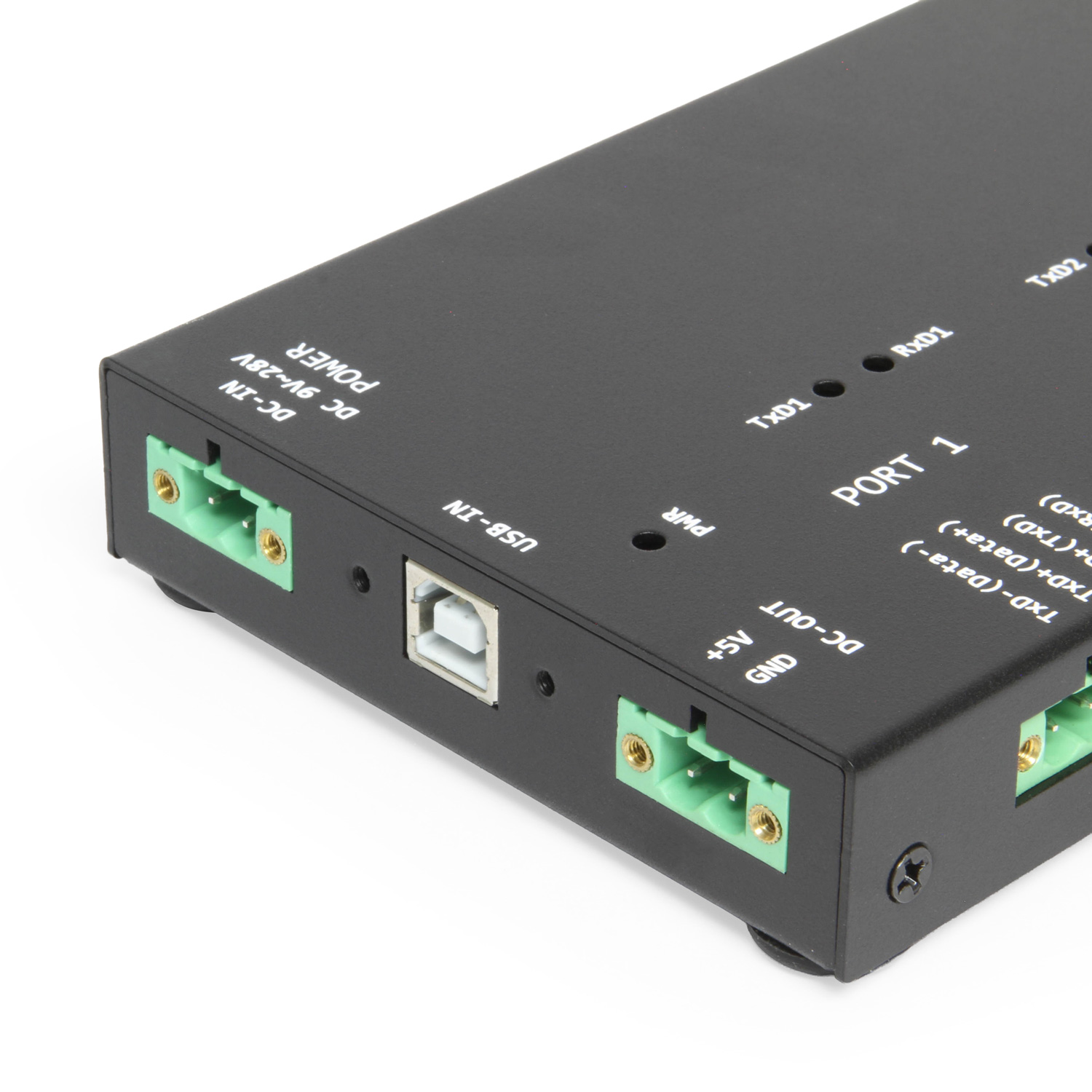
  • Monitor LEDS of TxD, RxD indicating port status
  • Virtual COM port drivers available for Windows 10, 8.1, 8, 7, Vista, 2003, 2000
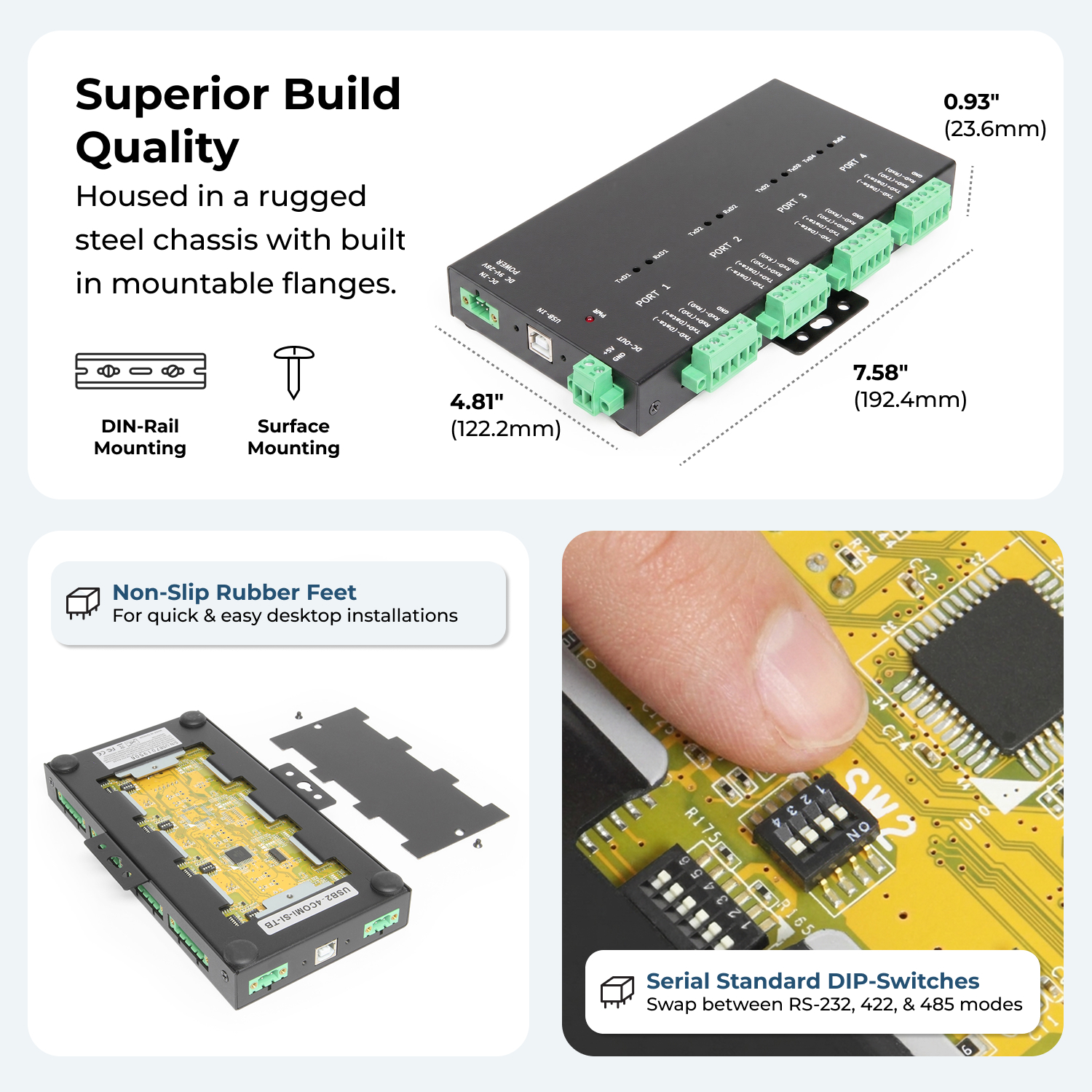
  • Industrial grade metal case with DIN-rail ears for Din-rail mounting.
  • Chipset: FTDI FT4232H USB 2.0 to quad UART chip
  • Dimensions: 192.42 x 122.22 x 23.60 mm (L×W×H), dimensions are to DIN rail(W), to power plug(L)

Package Contents

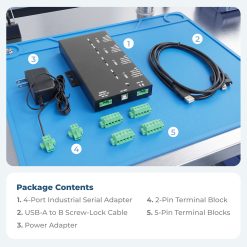
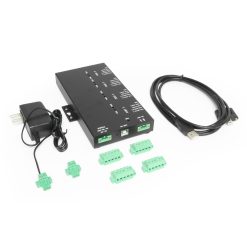
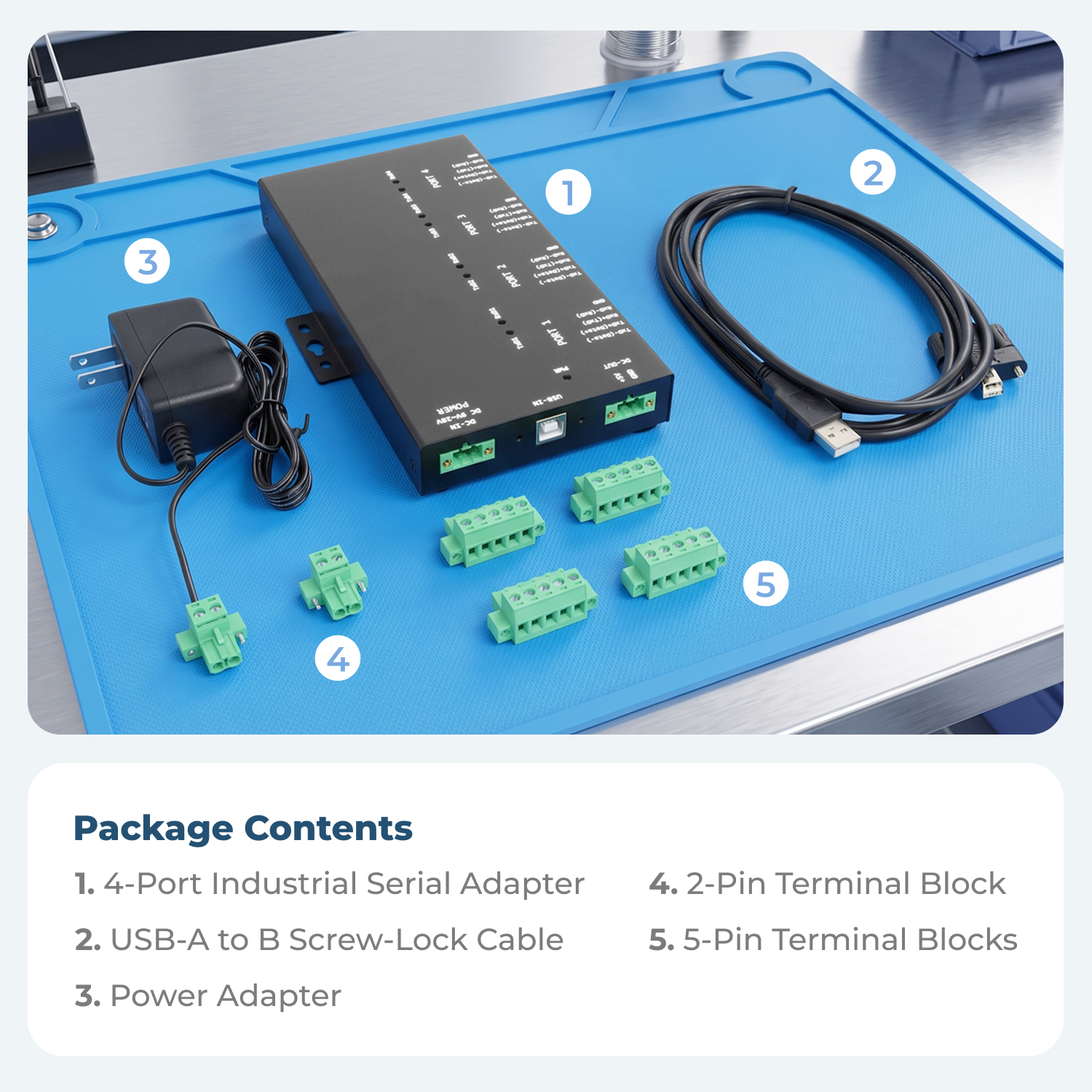
  • USB2-4COMi-TB serial adapter
  • Power adapter
  • USB cable

*Surface Mounting screws not included.

Specifications

Product Specifications

Power
Input Voltage

+9~28V DC

Compliance
Country of Origin

Taiwan

Certifications

, , ,

Physical Characteristics
Color

Black

Mounting Style

Din-Rail

Ports

1 USB Port

Serial Attributes
Serial Standards

RS232, RS422, RS485

Baud Rate

921.6K bps

FIFO Receive

2,000 bytes

FIFO Transmit

2,000 bytes

Software
OS Support

Win Vista, Win 7, Win 8, Win 8.1, Win 10

Environmental
Operating Temperature

0 to 60C

Hardware
Chipset

FTDI

Upstream USB Ports

1 Type-B Female USB

Other Data
Connector

5-Pin Terminal Block

USB Interface

USB 2.0

Weight

1.981 lbs

Dimensions

11.250 × 5.687 × 2.500 in

UPC: 736983902436
Accessories & Replacement Parts

Optional Accessories

The Industrial 4-Port RS232-422-485 Serial TB Adapter has certain accessories that work with it. These accessories are what you can order if needed.

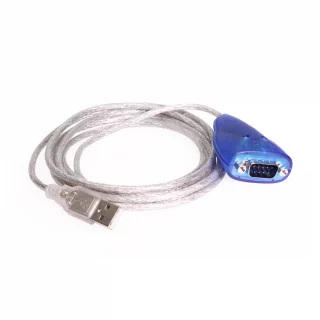
USB 2.0 Cable - Screw Lock Cable Our Screw Lock USB cables are designed and manufactured to be the best your money can get and…

Model# SC-U2MAB

$9.99

In stock

Add to cart

Out of stock
USB 2.0 Cable - Screw Lock Cable Our Screw Lock USB cables are designed and manufactured to be the best your money can get and…

Model# SC-U3MAB

$13.95

Out of stock

Read more

Support

Product Documentation & Drivers


Need drawings, CAD files, or other compliance documentation? Click HERE

Serial F.A.Q.

Product F.A.Q.

View frequently asked product questions below. For all serial troubleshooting, visit this page.
Still need help? Reach out!

  • How do I clean and reinstall my FTDI drivers?
      1. Download the CDM Uninstaller HERE.
      2. Extract the zip file, or open the “CDMuninstallerGUI.exe” utility.
      3. Leave the ‘Vendor ID’ set to 0403 and ‘Product ID’ set to 6001.
      4. Click Add.
      5. Click Remove Devices.
      6. Download the corresponding driver for your operating system and follow on-screen prompts. Windows Driver | MacOS Driver

    Video tutorial here.

  • How can I change my device’s COM port?
      1. Click on Start and navigate to the Control Panel
      2. Locate and click on Device Manager
      3. Under “Ports (COM & LPT)” you will find your serial device titled “USB Serial Port” along with its current COM Port.
      4. Right click on “USB Serial Port” and click on Properties.
      5. Navigate to the “Port Settings” tab and click on “Advanced…”
      6. Once there, the “COM Port Number:” can be changed with a dropdown menu to select the port number.
      7. Click your desired port number (i.e. COM2) and click “OK”.
      8. Click “OK” once more.
      9. Your serial device is now assigned to your chosen COM Port.


  • How do I check to ensure the COM port is listed properly in Windows?
    To ensure your serial device is installed properly, complete the following:

    1. Press Windows Key + R to open the Device Manager. Once Run comes up, type “devmgmt.msc” into the text field and press Enter.
    2. Expand the section labeled, Ports (COM & LPT).
    3. You should now see a COM number in brackets to the right of each port. If the device is installed properly, no exclamation points or question marks should be present next to the device.
  • I have everything hooked up, but nothing is functioning correctly.
    To rule out potential issues, quickly test your individual components to ensure that they are working correctly individually, and are not the source of the problem:

    • Serial cables
    • Serial ports
    • Serial devices

    Test your components by:

    • Hook up the serial cable(s), serial port(s), and serial device(s) in a different setup to see if the issue stems from a particular component, or the setup as a whole.
    • Replace the serial cable, port, or device within your setup to further troubleshoot the issue’s origin.

    When testing cables:

    • Test each cable individually.
    • Use short cables when you are testing.

    When testing serial ports and devices:

    • Press the Windows key + R, in Run, type devmgmt.msc, and press Enter to open the Device Manager. You can then check to see if your device is listed under Ports (COM & LPT).
    • Ensure that the COM port number is the correct number for the serial device and that the software being used to connect the computer to the serial device uses the correct COM port number.
    • If the device is listed with an error, follow the instructions on the website to reinstall the drivers.
  • Serial communication is not functioning correctly, how can I tell if the problem caused by the adapter or my serial software application?
    Older serial communication applications make use of legacy hardware addresses, often incompatible with PCI, PCIe, and USB to Serial products. Contact the software provider to troubleshoot.
  • I am receiving an error when I try to install the drivers in Windows 8 64 bit.
    Driver Signature Enforcement in Windows 8 may need to be disabled in order to use various drivers. After disabling this feature, the driver will be allowed to install.

    Note: You are required to restart your computer after disabling the Driver Signature Enforcement. Save all open work on your computer.

    Disable driver signature enforcement:

    1. Press the Windows key + C.
    2. Click Settings > Change PC Settings.
    3. In the left pane, click General.
    4. In the right pane, under Advanced startup, click Restart now.

    When your system restarts:

    1. Click Troubleshoot > Advanced options > Startup Settings > Restart.
    2. Press 7.

    When your computer restarts, Driver Signature Enforcement will be disabled and you can install the drivers.

  • I am receiving an error when I try to install the drivers in Windows 10 64 bit.
    Driver Signature Enforcement in Windows 10 may need to be disabled in order to use various drivers. After disabling this feature, the driver will be allowed to install.
    Note: You are required to restart your computer after disabling the Driver Signature Enforcement. Save all open work on your computer.

    Disable Driver Signature Enforcement:

    1. Click the Windows icon in the taskbar.
    2. Click Power.
    3. Press and hold the Shift key and click Restart.

    After your computer restarts:

    1. Click Troubleshoot Advanced Options Startup Settings Restart.
    2. Press 7.

    When your computer restarts, Driver Signature Enforcement will be disabled and you can install the drivers.

  • Why did the software not install properly in macOS High Sierra (10.13) or later?
    High Sierra 10.13 and later versions of macOS enforce strict security policy revisions. In order for the device to operate, software packages like those used in this installation must be allowed in macOS Security and Privacy settings once the software is installed.

    Once the driver/software is installed, follow these steps to allow the software:

    1. Open System Preferences.
    2. Open Security & Privacy.
    3. Click the Allow button near the bottom of the General tab.
Reviews (0)

Reviews

There are no reviews yet.

Be the first to review “USB 2 to Industrial 4-Port RS232-422-485 Serial TB Adapter”