


Features:
USB Type-C PD Chargers
USB Type-A Chargers
Multi-Port USB Chargers
Integration-Ready Charging PCBAs

$75.49
Expected Availability Date: October 23, 2026
Not in stock - Backorder allowed
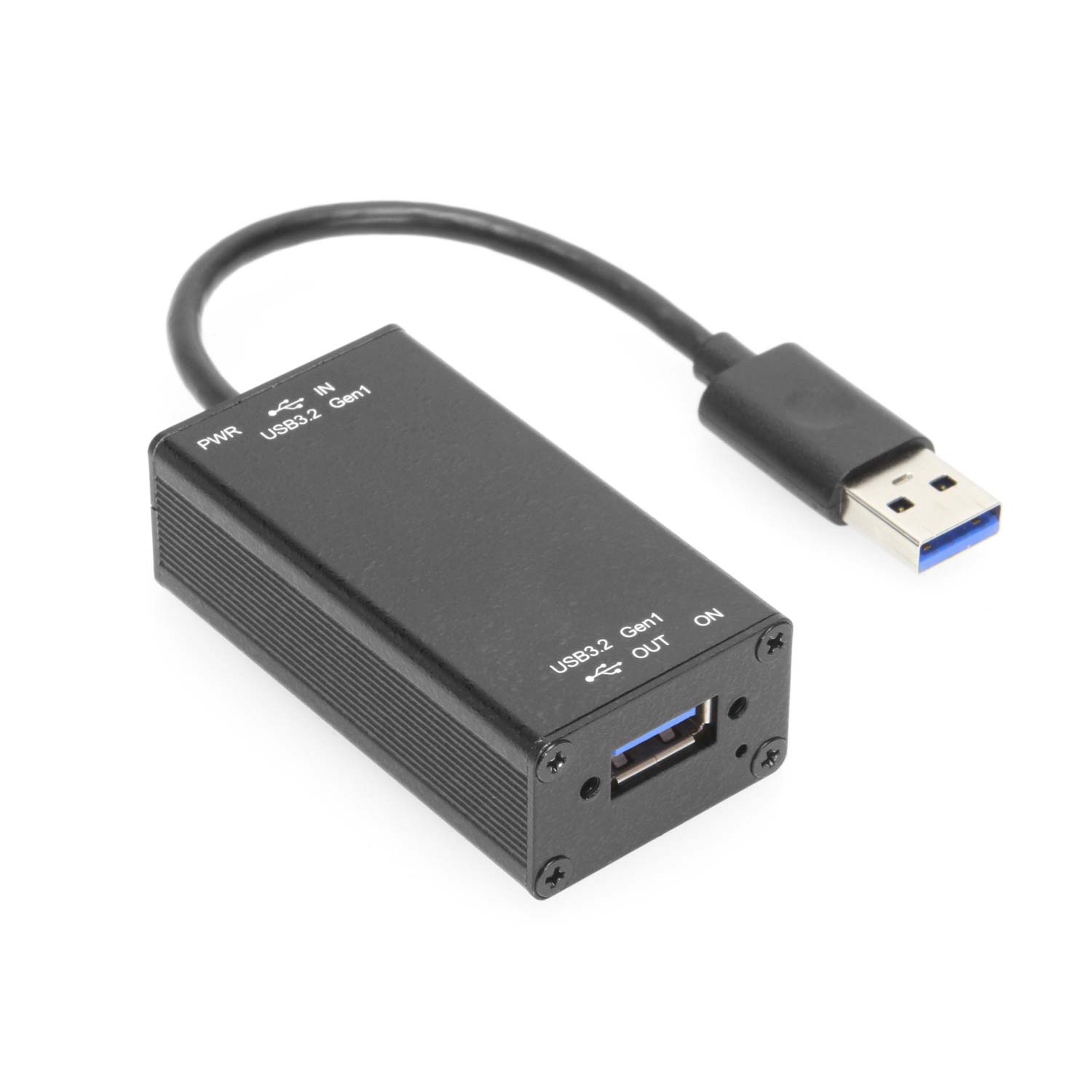
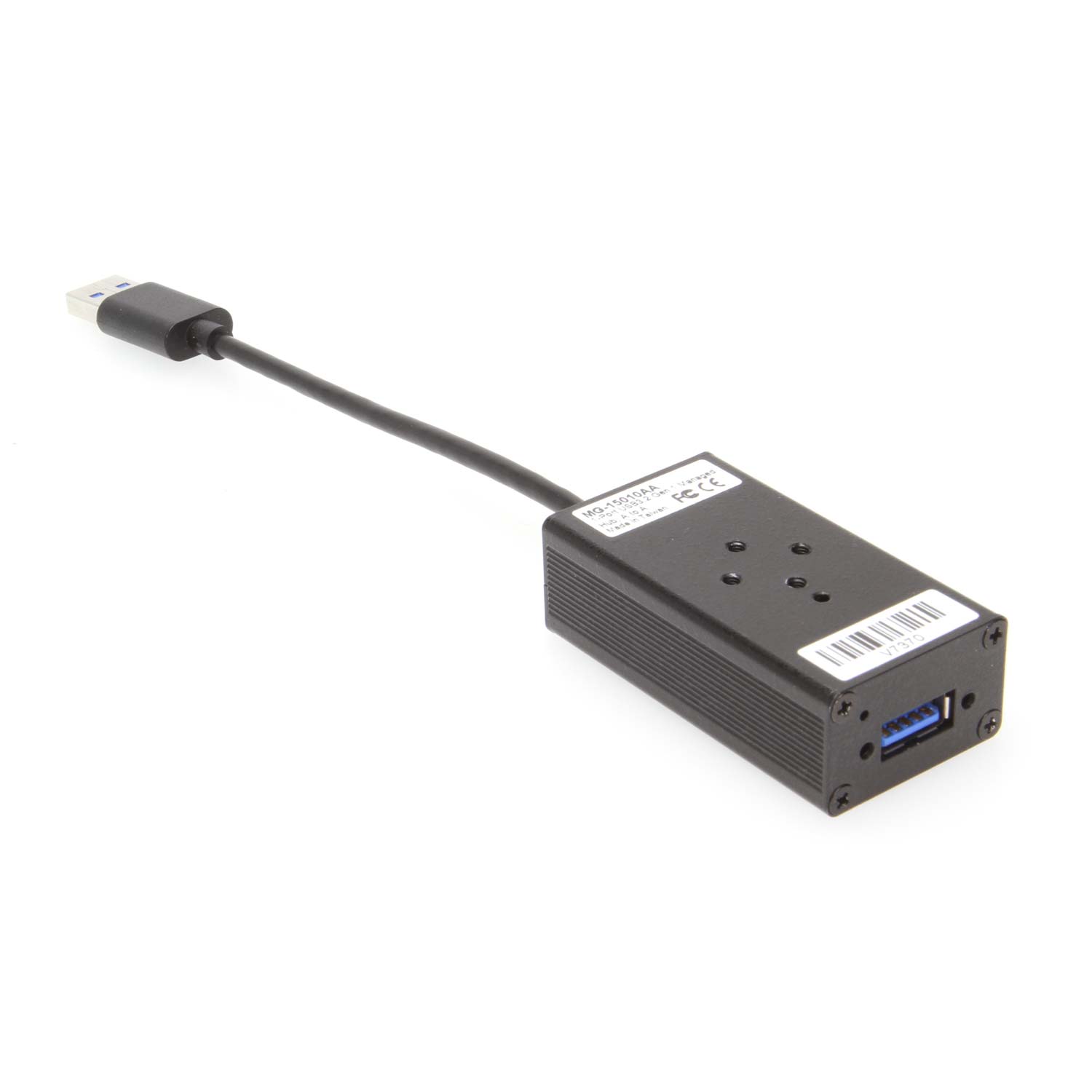
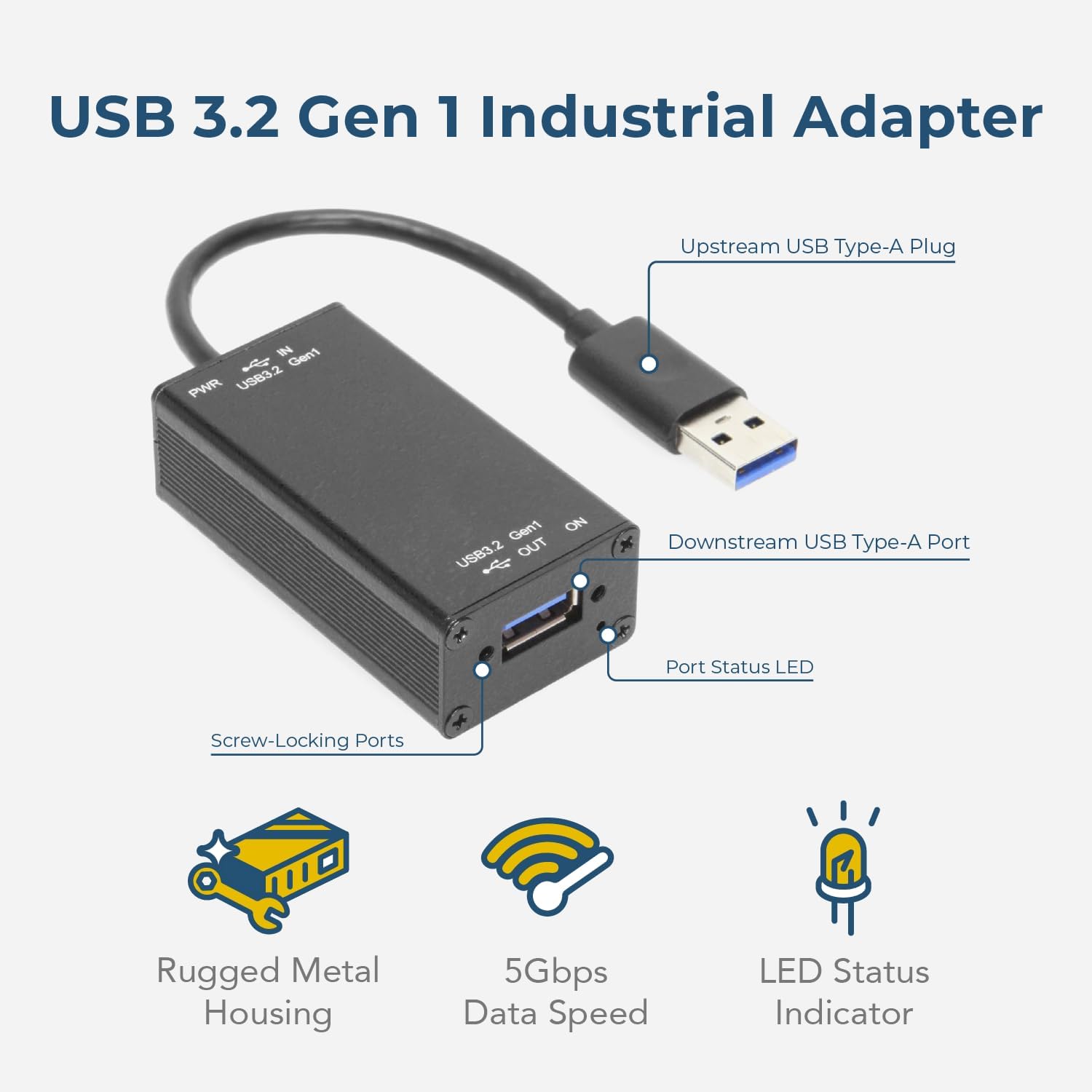
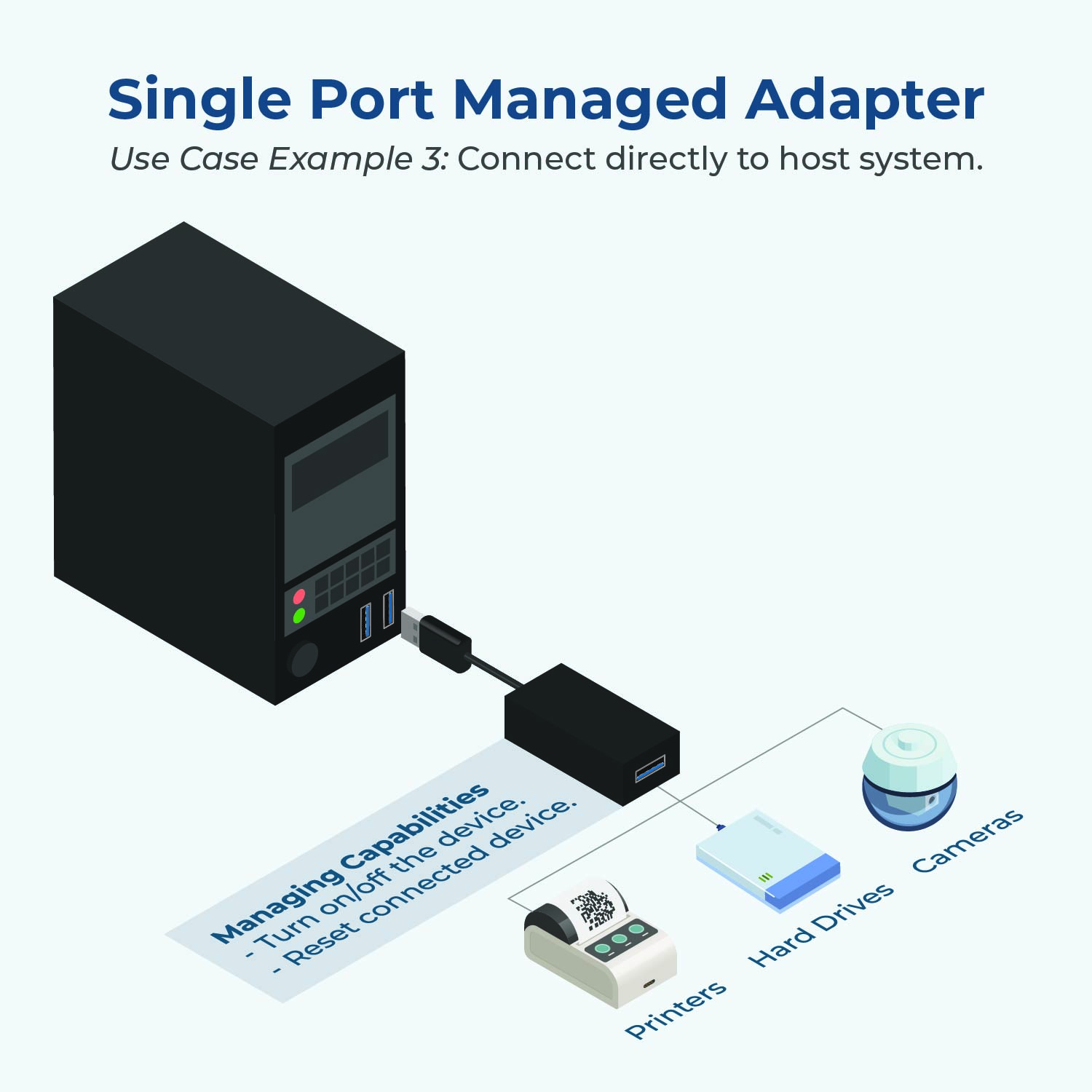
The CG-1MGDU3A from Coolgear’s MDS-UH Port Management Series is a versatile single-port USB 3.2 Gen 1 adapter designed for advanced port management in industrial and high-demand environments. Unlike standard USB hubs, this adapter integrates seamlessly with your existing setup to enhance control and provide robust management features, making it an ideal choice for mission-critical applications.
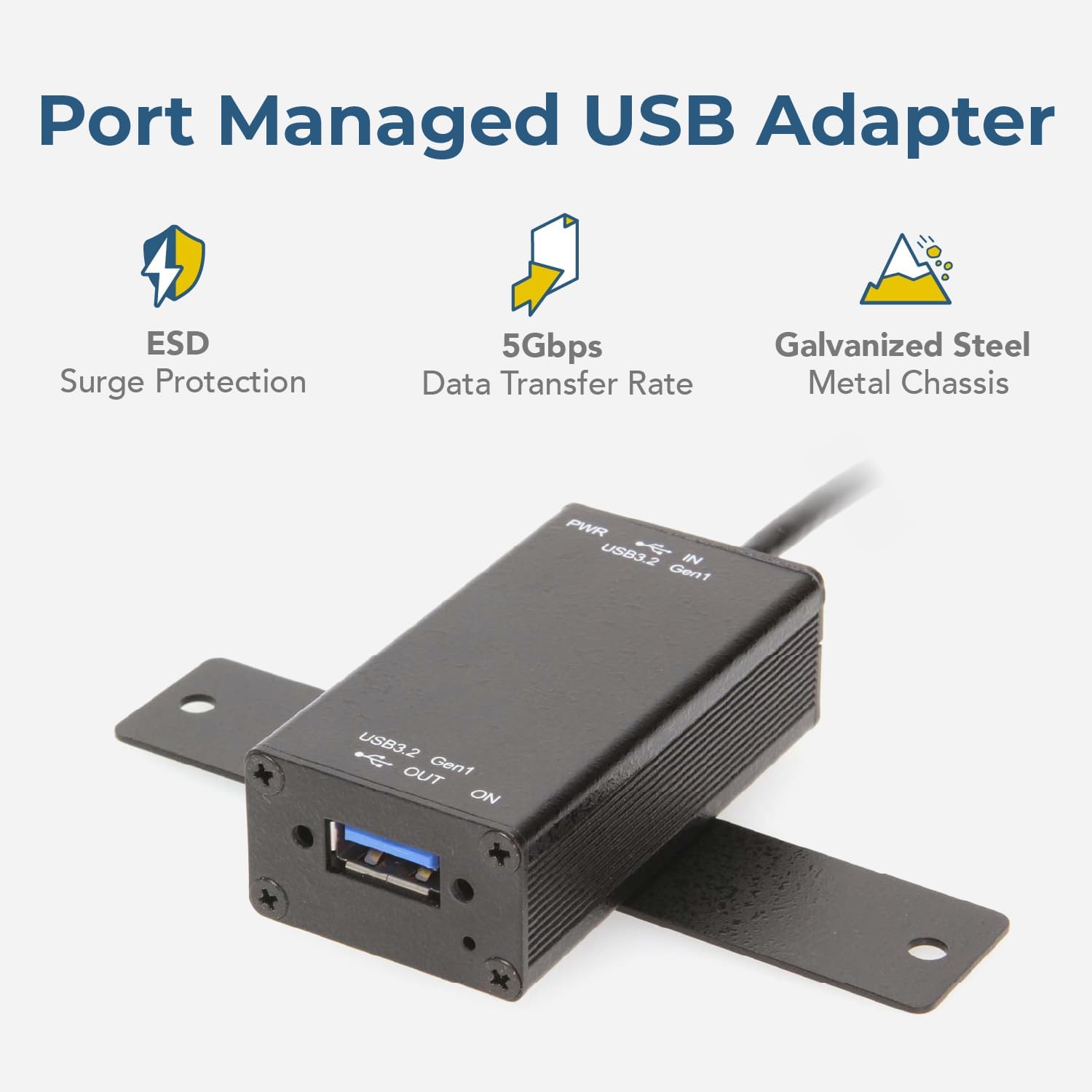
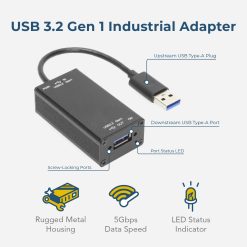
Supporting the latest USB 3.2 Gen 1 specifications, this adapter delivers reliable data transfer rates of up to 5Gbps and offers 15kV ESD protection. With full compatibility across USB 3.2, USB 2.0, and USB 1.1 devices, it is perfect for managing multiple USB peripherals with precision and efficiency. The adapter also supports USB Battery Charging v1.2 and vendor-specific charging modes like Apple 2.4A and Samsung, ensuring versatility in charging and data synchronization.
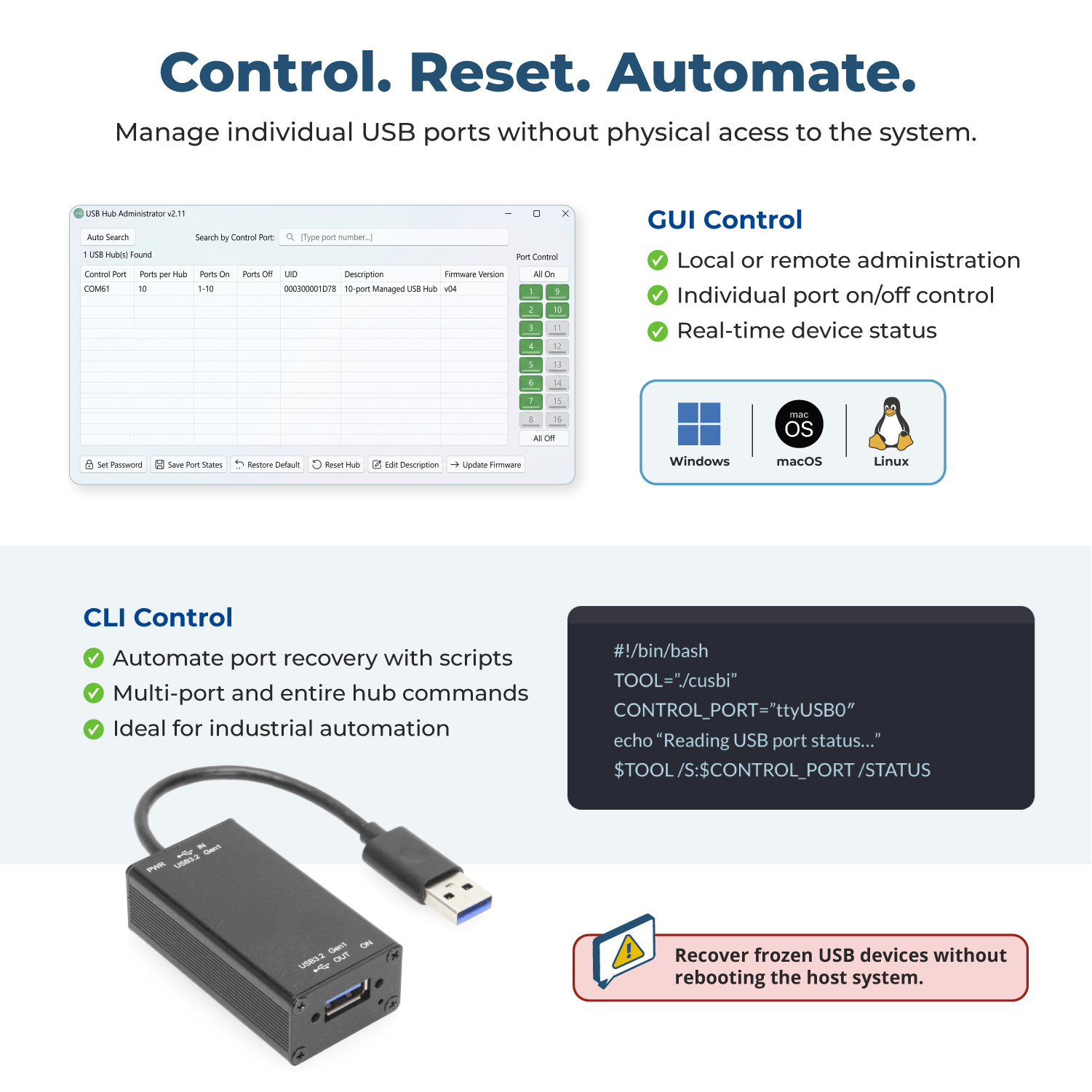
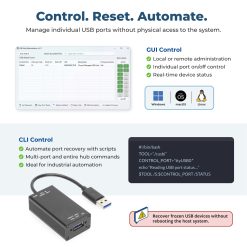
The CG-1MGDU3A is bundled with comprehensive management software, allowing users to monitor and control bus power and reset connected devices. Its intuitive GUI and command line tools support multiple platforms, including Windows, Linux, and macOS, making it an indispensable tool for system administrators and engineers.

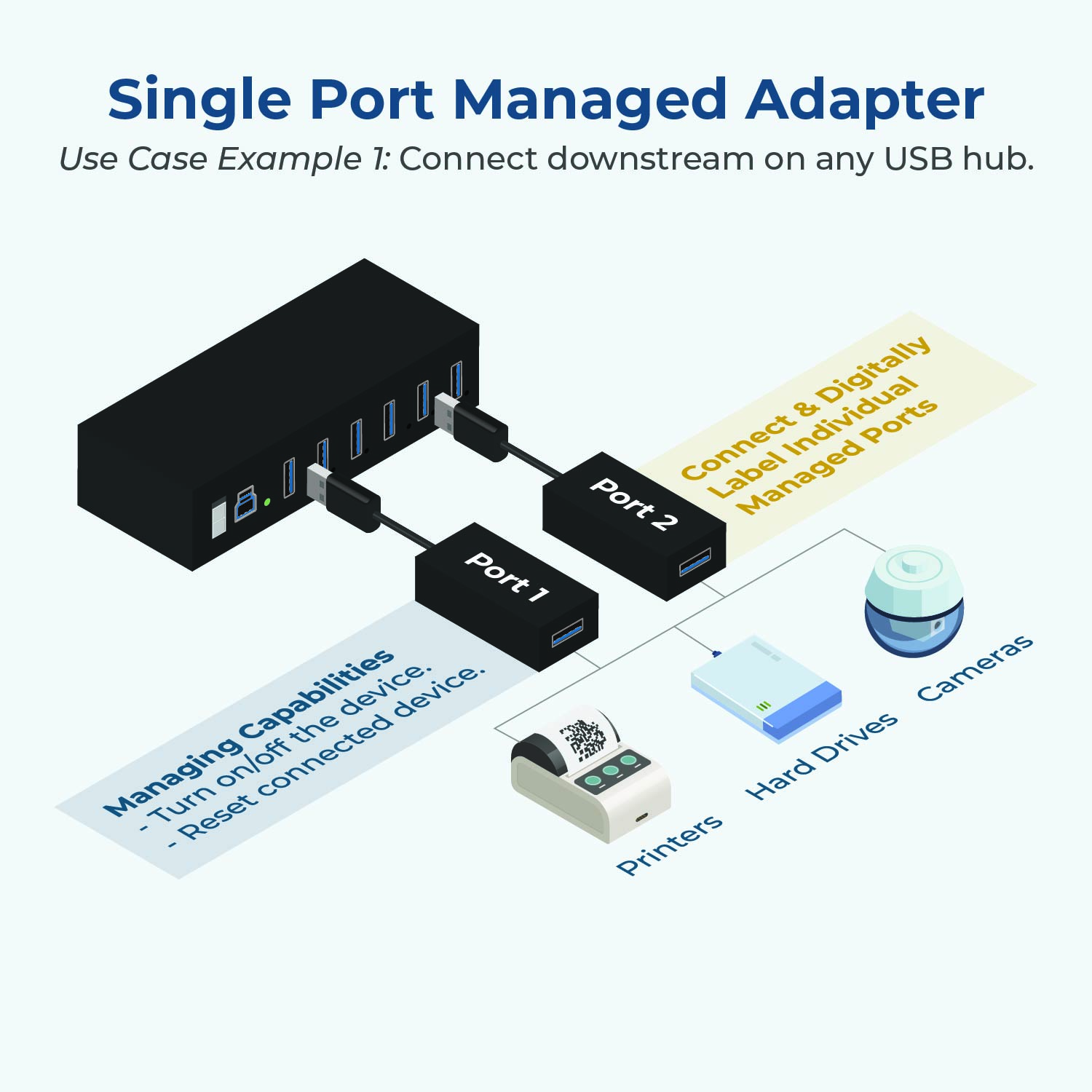
Connect, turn on, turn off, and reset any connected USB devices.
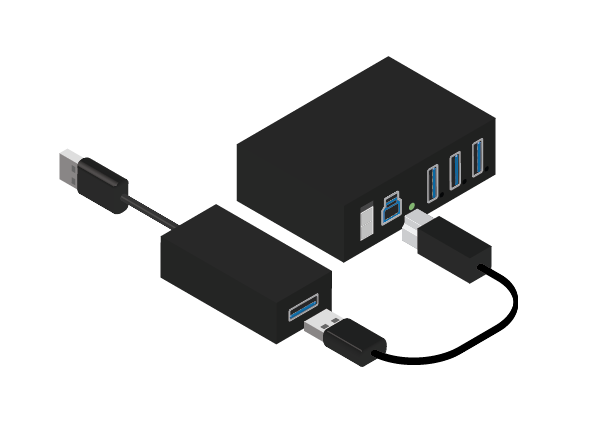
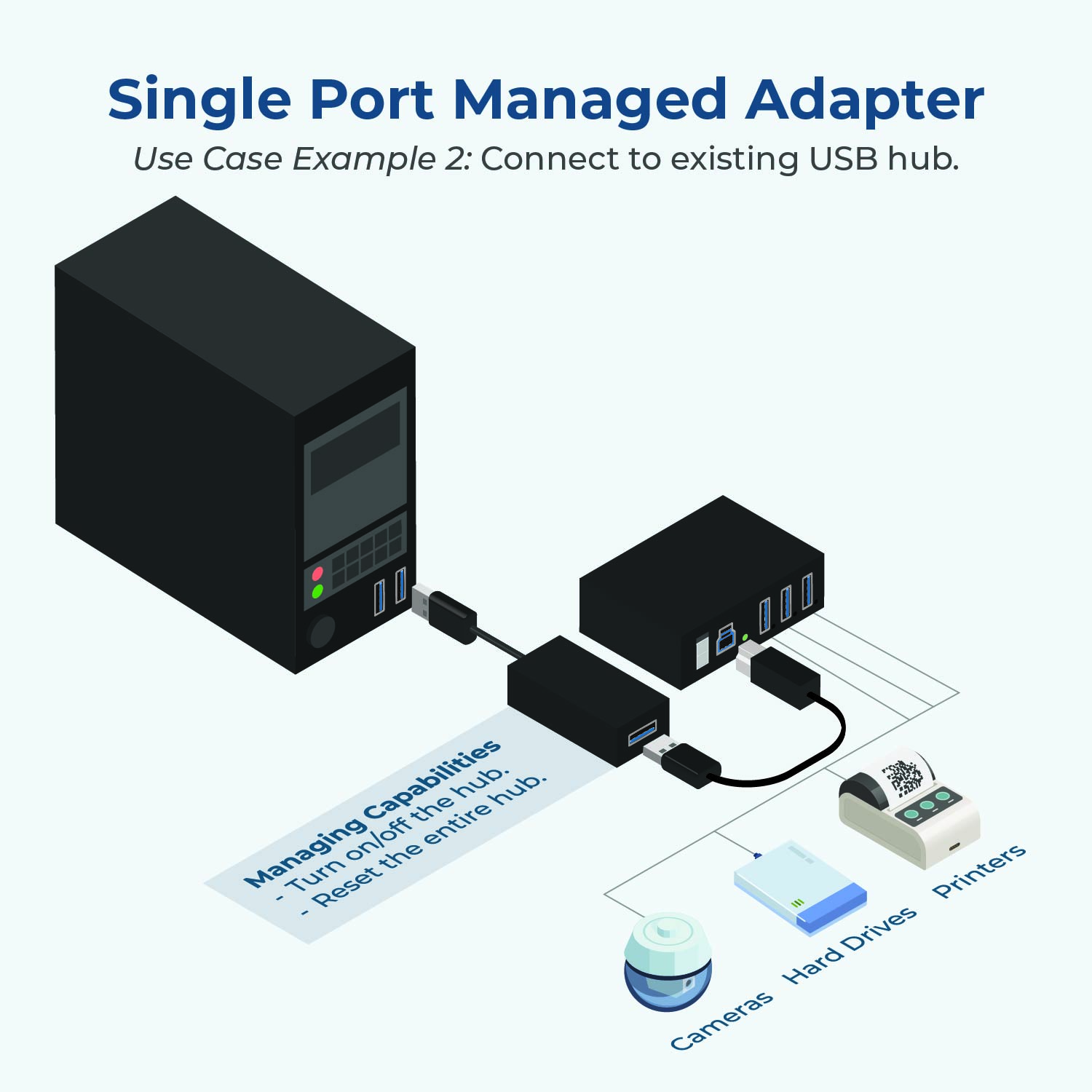
Connect, turn on, turn off, and reset any connected USB hub.

Digitally label individual ports when connecting multiple adapters.

Implement our management software into any system and leverage it’s functions.
The CG-1MGDU3A software package contains several managing software utilities which support different platforms allowing better control over each individual ports’ status. A GUI (Graphical User Interface) and console command prompt utilities for all major Microsoft Windows and Mac OS. It also includes utilities for different Linux versions. The utilities were written to easily operate with the applications software written with different language such as C#, C++, VB, Python or even a PHP server scripting language.

Image: Port managing software displaying the On/Off status of each port.
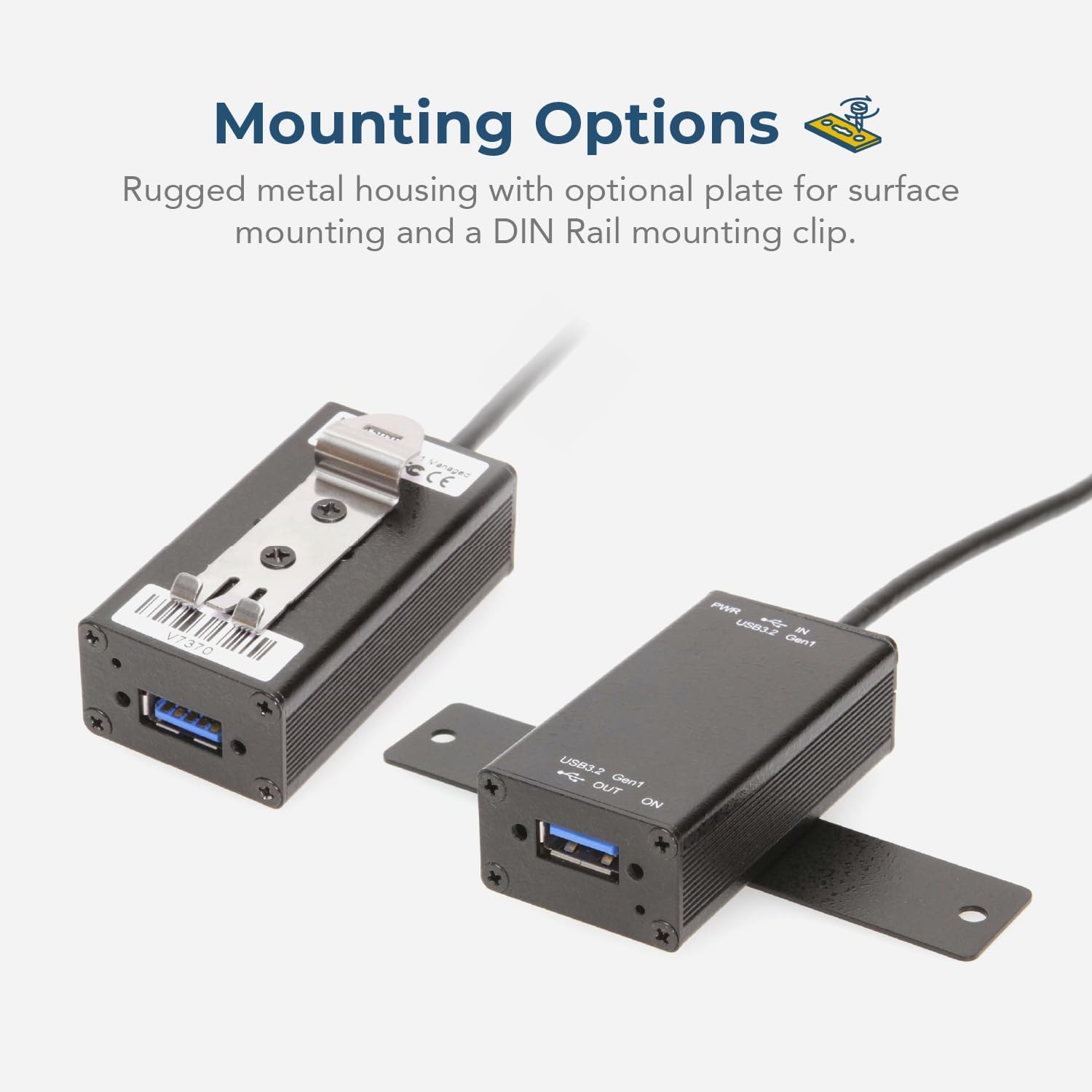
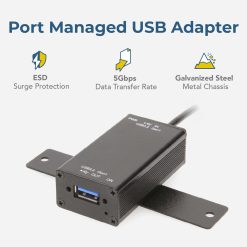
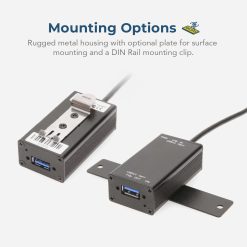
*Surface Mounting screws not included.
Eliminates the need for manual unplugging in hard-to-access installations.
The CG-1MGDU3A has been rigorously tested to meet the highest international safety standards. Our comprehensive testing ensures you can rely on the device in even the most demanding automotive, industrial, and commercial applications.
| Standard | Certificate/Test Report | Status | Remarks |
|---|---|---|---|

|
Report: General Product Safety Regulation: (EU) 2023/988 / EMC Directive: 2014/30/EU Cert.: EN 55032:2015+A11:2020+A1:2020 EN 55035:2017+A11:2020 EU PoP 2019/1021 |
✓ Compliant | – |
 |
Report: FCC 47 CFR Part 15 Subpart B Cert.: FCC Part 15, Subpart B, Class B ANSI C63.4: 2014 ANSI C63.4a-2017 |
✓ Compliant | – |
 |
Report: EC/1907/2006 – 250 SVHC List 06/25/2025 | ✓ Compliant | – |

|
Report: RoHS Legislation Cert.: 2011/65/EU + (EU) 2015/863 |
✓ Compliant | – |
*Passing a test report does not constitute certification, listing, or product registration. Test Report Available – Certification Required for End Product
| Identifier | Product Type: USB Adapter |
|---|---|
| Power | Input Voltage Range: 5V DC Bus Power Support: Y – Supports Bus Power Charging Protocols: Apple Charge 2.4A, BC 1.2, CDP, DCP, Samsung, SDP Charging Downstream Port (CDP): Yes Dedicated Charging Port (DCP): Yes |
| Compliance | Country of Origin: Taiwan Certifications: TAA, CE, FCC, POP, REACH, RoHS |
| Physical Characteristics | Color: Black Item Dimensions (L × W × H): 2.37 × 1.3 × 0.79 in. Item Weight (Oz.): 0.15 lbs. Mounting Style: Din-Rail Mount, Surface Mount, Wall Mount Material of Construction: Steel Screw Lock Compatible: Yes |
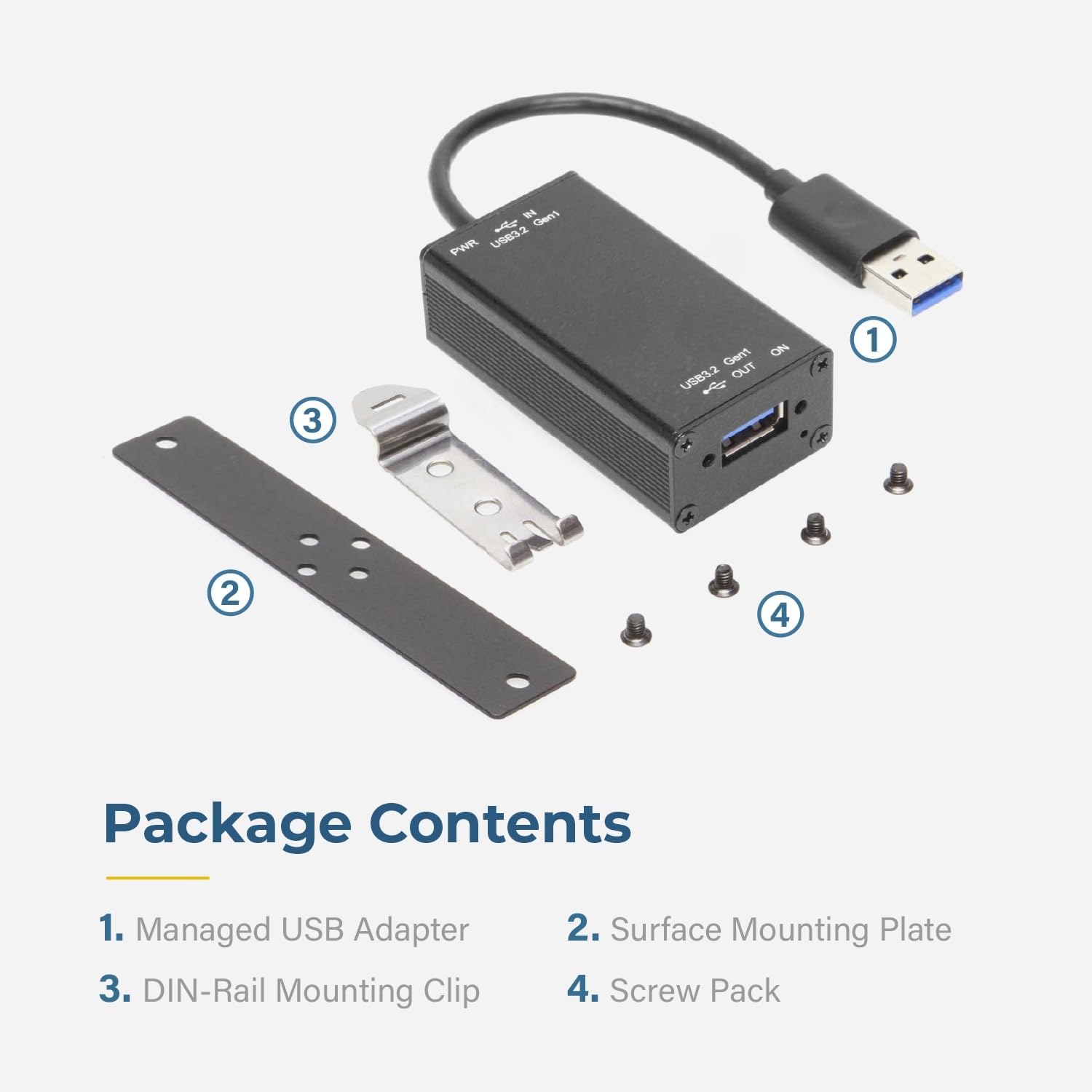
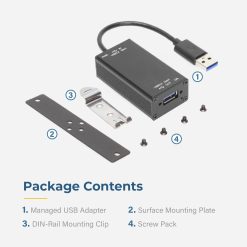
| What's in the Box | Package Contents: Adapter, DIN Rail Bracket, Driver/Software Disk, Mounting Bracket, Screw Pack |
| Software | OS Support / Compatibility: Windows 11, Windows 10, Windows 8, Windows 7, Windows Vista, Windows XP, Mac OS, Linux Managing Software Utilities?: USB Managed Hubs Software (cusba/cusbc/cusbi/cusbm) |
| Environmental | Operating Temperature Range: 0C ~ 60C Storage Temperature: -20C ~ 75C Humidity: 5% to 95% RH Altitude: Up to 2000m |
| Product Information | Warranty: One Year |
| Hardware | Chipset: GL3523 LED Indicators: Port Status, Power Downstream USB Ports: 1x Type A USB 3.2 Gen 1 (5Gbps) Dual Screw Lock Compatible Upstream Port Types: 1x Type A USB 3.2 Gen 1 (5Gbps) Fixed Cable |
| Performance & Safety | ESD Protection: 15kV Max Data Transfer Rate: 5Gbps |
| Additional Details | USB Specification: USB 3.2 Gen 1 (5Gbps) UPC: 045079164581 Series: MDS-UH (Managed Hub Series) Weight: 0.3900 lbs Dimensions: 9 × 6.25 × 1.5 in |
View frequently asked product questions below. Still need help? Reach out!
In some cases, yes. USB peripherals that only require low power (i.e. keyboards & mice) can be used without a power adapter. Power in this case is drawn from the host’s USB port.
When high-power USB peripherals are used, a power supply for the USB hub may be required. In other cases, the USB peripheral may require their own power adapters, in this case, a power supply for the hub may not be required. Without ample power though, the USB hub or connected peripherals may not operate correctly. It is recommended to use an included power supply when possible.
To prevent this, follow the steps below (depending on your operating system).
Windows 10 / 8
Note: You may need to disconnect and re-connect your USB device after applying these settings.
Windows 7 / Vista
Note: You may need to disconnect and re-connect your USB device after applying these settings.
Windows XP
Note: You may need to disconnect and re-connect your USB device after applying these settings.
Moving on to troubleshooting the hub itself. Attach a USB peripheral. The USB hub itself will not appear in hardware listings on your host’s system. USB devices connected however, will appear when connected. If the connected device is still not being found, try:
USB hubs do not require drivers or software.
Troubleshooting the desired USB peripheral may be in order. If the peripheral is still not being recognized, attempt:
External power is supplied by connecting to the terminal block located on the hub. For when an external power adapter is required check out the Accessories & Replacement Parts section on this product page. To view all of our hub accessories and power supplies, visit the category here.
To determine the power requirements, the equation to use is P = 5 * I * N, where:
P is the power wattage.
5 is the USB port voltage.
I is the current of the USB port in Amps (USB 2.0 is 0.5A, USB 3.0 is 0.9A.
N is the number of USB ports.
As an example using the equation, a 4 port hub would reflect a minimum wattage of 18 watts.
Knowing the minimum requirement, a proper power adapter can be chosen. In this case the voltage of a power supply should be within 7 to 24 or 7 to 40 Volts DC, depending on the specifications of the USB hub. Also, the power supply must convert AC to DC (no AC output).
Power supplies often come with a voltage (V) rating and an amperage (A) rating. To determine the current in amps, use I = P / V, where the following is true:
I is the current of the power supply.
P is the calculated power of the hub.
V is the chosen voltage of the power supply
Continuing the example, the 4 port hub requires 18 W and the power supply you choose is 12V, the current of the power supply would be I = 18/12, I = 1.5A.
Our full collection of power adapters can be found here.
Yes. The /R command performs a hardware reset of the entire hub, which will automatically disconnect and reconnect all downstream devices.
Yes. You can control all ports simultaneously using the ALL argument or specify a list of ports separated by commas (e.g., 1,2,5).
The command-line utilities are designed for easy integration with applications written in most languages, including C++, C#, VB, PHP, and Swift.
The software supports Microsoft Windows (32-bit and 64-bit) via the USBCTL GUI and CUSBC.exe utilities, Linux (Intel/AMD and ARM architectures) via cusbi and cusba scripts, and Mac OS via the CUSBM package.

Model# USB-8COMi-RM
$439.99In stock

Model# USB-32COM-RM
$706.49Not in stock - Backorder allowed

Model# USB-4COMi-SI-M
$409.49Out of stock

Model# USBG-COMi-M
$87.49In stock
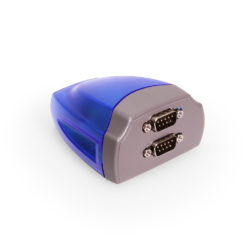
Model# XC-232-C
$68.99In stock
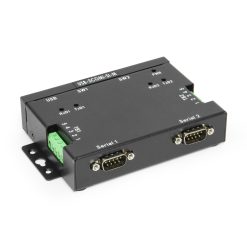
Model# USBG-2COMi-SI-M
$221.99Not in stock - Backorder allowed

Model# USB-COMiPLUS
$70.49Not in stock - Backorder allowed

Model# CM-41042
$287.29In stock
Need help with a Coolgear product you’ve purchased? Get product support from our on-site engineers.
Contact our sales team for assistance before you buy a Coolgear product.



































Reviews
There are no reviews yet.